 Marqup
PDF markup and measurement
for Architecture, Engineering and Construction
on the Mac
Native macOS · Standard PDF markups
marqup, draw,
Measure, and optimize your plans.
Send it back.
collaborate
A new engine.
A full PDF suite.
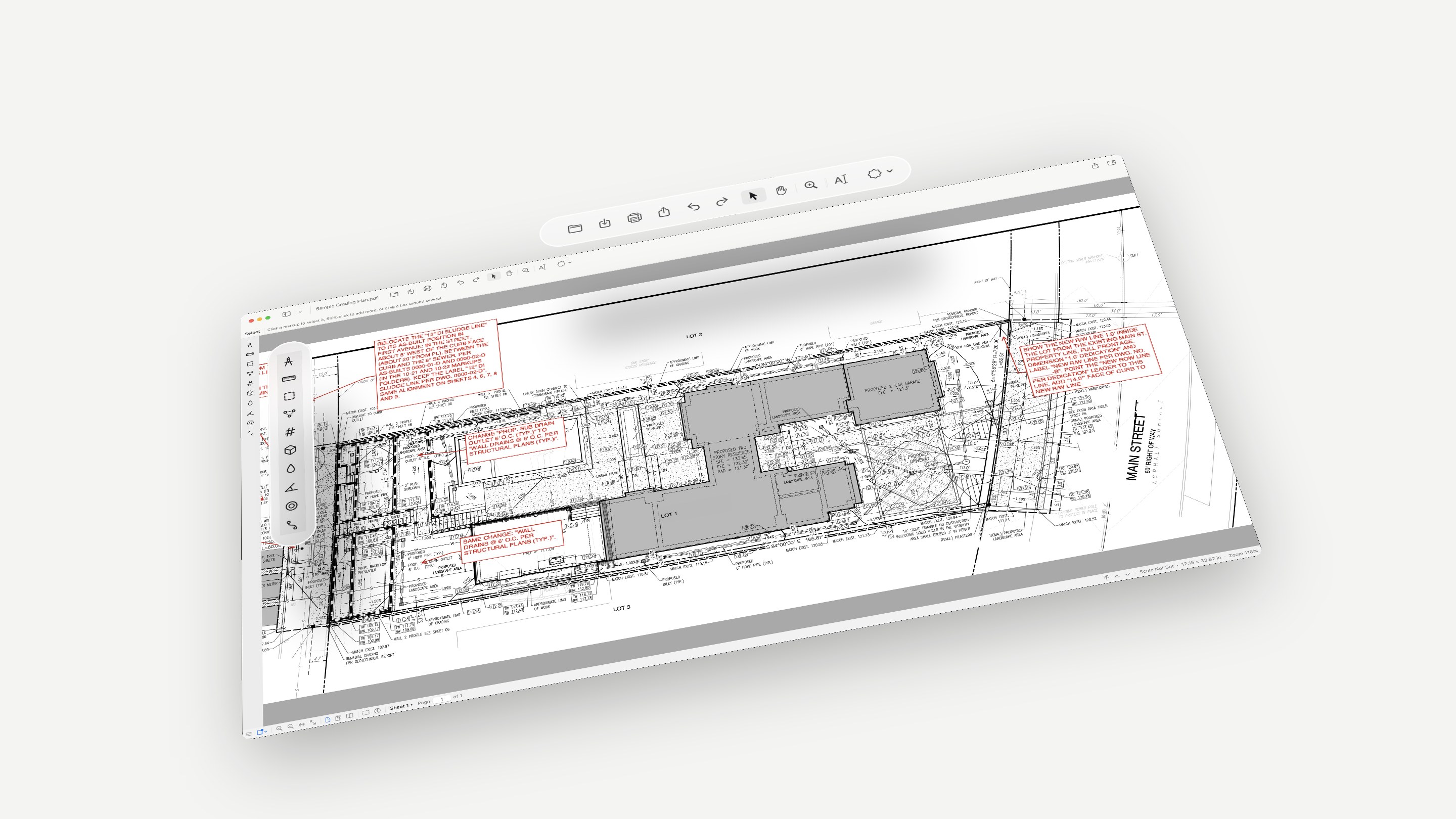
Marqup runs on its own PDF engine, written natively for the Mac and Apple silicon. It reads and writes the PDF directly, the same standard file every reviewer already uses, so large plotted sets open in a fraction of a second, sheets draw as you reach them, and nothing is converted or uploaded.
Under the redlines is a complete PDF suite: create, combine, split, crop, number, bookmark, link, protect, repair, recognize text and batch-process whole folders. Every part of it was built for drawings: plotted scales, CAD layers and linework, title blocks and sheet numbers, sealed sets and agency portals.
Advanced where
it counts.
Reads the scale CAD writes into each viewport. Where there is none, it reads the scale printed on the sheet, notes such as 1" = 20', checked against the scale bar. Measure the moment the sheet opens.
Vertex grips, add or delete vertices, true arcs on any segment, and object snap to the endpoints, midpoints, intersections, perpendiculars and nearest points of the sheet's own linework. F3 turns snap on and off, as in CAD.
Overlay two revisions in red, blue and black, or cloud every change automatically. Slip sheet the new revision under your existing markups.
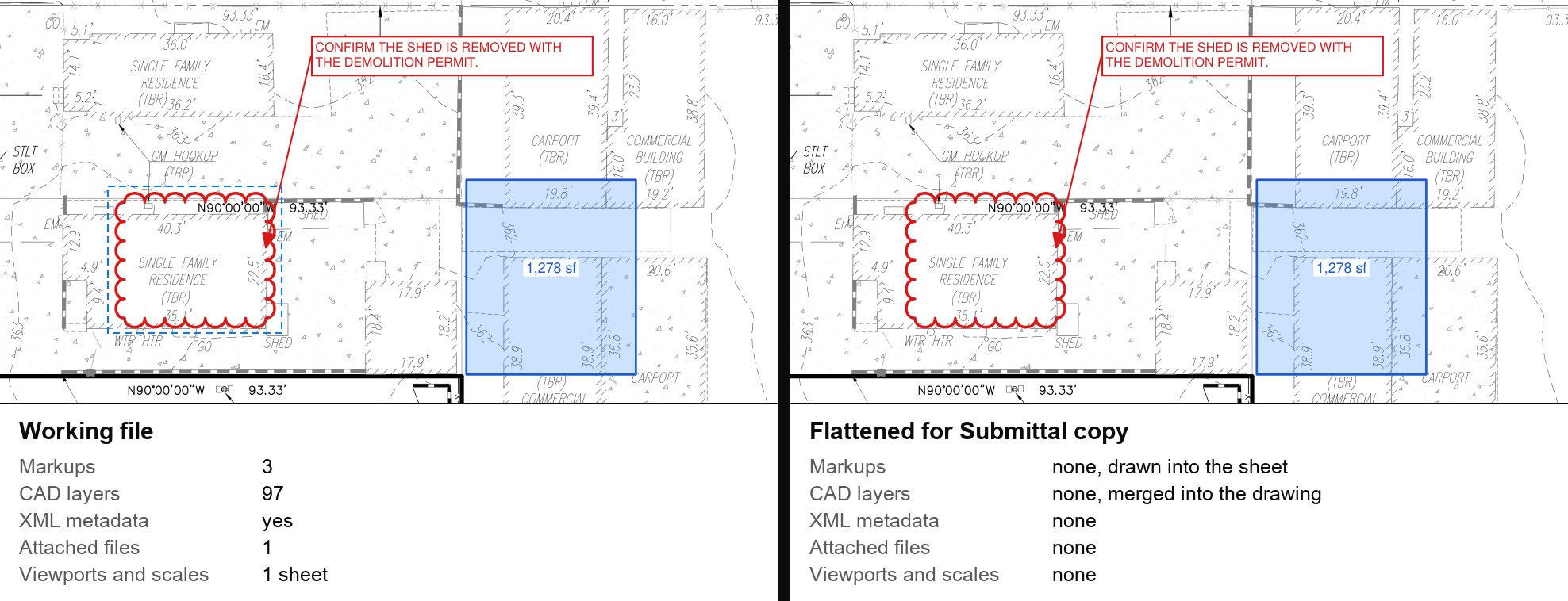
One command readies a set for an agency portal: markups, seals and stamps drawn in; XML metadata, attached files, scripts, viewports, CAD layers and empty AutoCAD SHX text removed. It always saves a new file and checks every sheet against the original.
Highlighter colors that mean something: Done, Other Party, Verified, Question, or your own. One click closes a comment: its status becomes Completed and the Done color is laid over it.
Sheet labels read from the title block, sheet references linked across the set, text recognition for scans, and CAD layers on and off.
Right-click a markup and pick every one like it, by type and color, on one sheet or the whole set. Change their color, line, text or status in one step, from the sheet or the Markups List.
Group markups so they select and move as one, saved the standard PDF way so the groups survive in other markup apps. Line up edges or centers, space notes evenly, resize a selection together.
Rotate a note to run along a street or property line. Helvetica, Times or Courier, bold, italic, underline, character spacing, a text background, bullets and numbered lists.
Password-protect a set and choose what others may do: print, copy, mark up. Lock markups in place. Remove protection when you hold the password.
The settings of the tool in hand sit in a thin bar under the title bar: color, line, fill, text size, autosize, the sheet scale and snap.
Opens and saves standard PDF markups other PDF review apps read, with their colors, measurements, status, replies and groups intact.
A Mac app,
handcrafted for apple silicon.
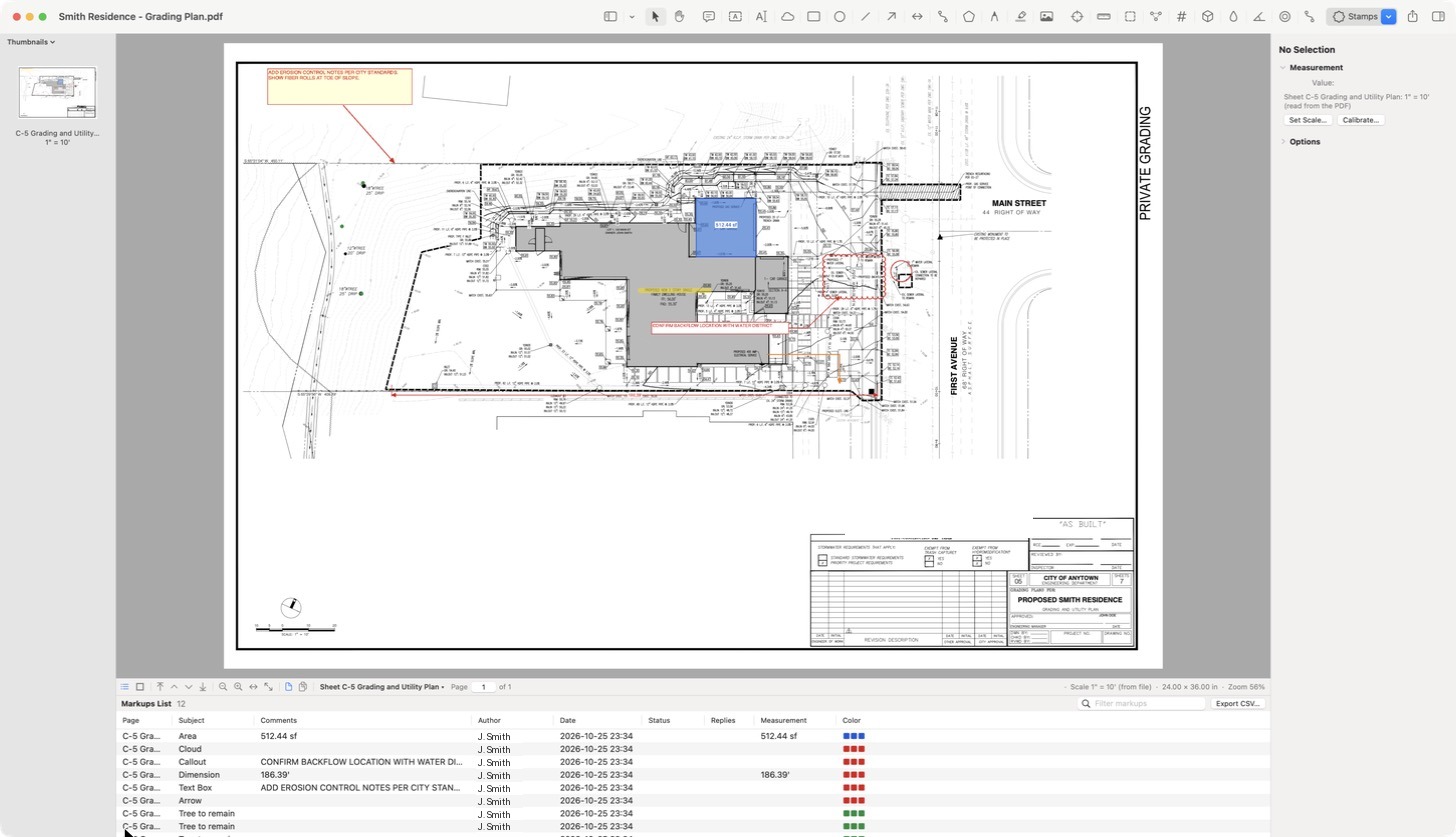
Sheets in the sidebar by their own labels. Tools along the top, with the keys you already know. Every property of the selected markup on the right, and every markup on the set in the list below.
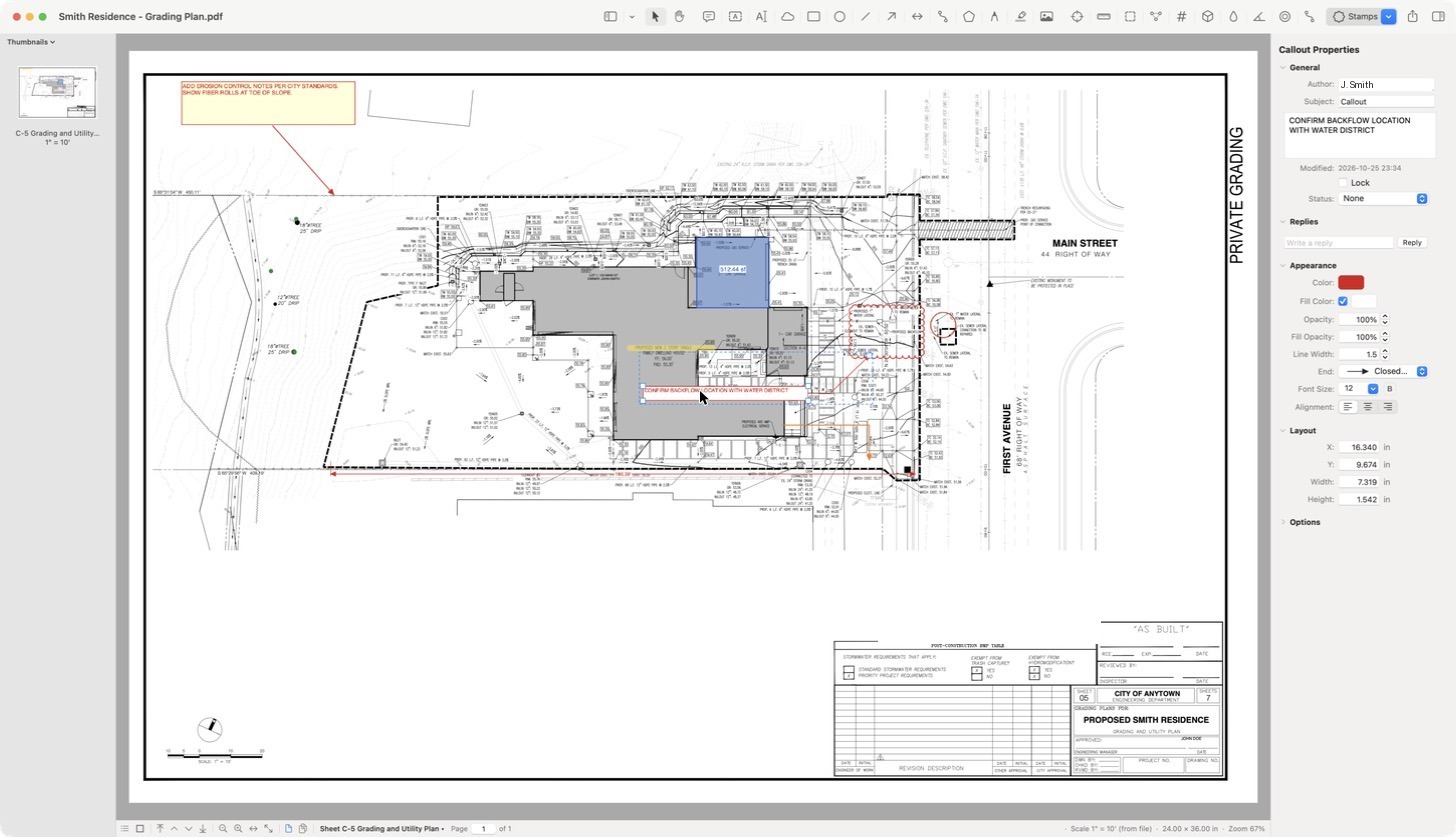
Five tool sets: File, Select, Draw, Measure and Stamps. Each sits in the title bar, on the left or right edge (one or two columns deep), floats in its own small window, or hides. Hold Command and drag to move one.
Save a markup with its settings, such as your standard review cloud or a water-line polyline, and place it again from the Properties pane.
One key hides every panel and toolbar and leaves only the sheet. Light, Dark or Match System, and an AutoCAD-style crosshair if you want one.
Every redline a
plan check needs.
Clouds, callouts, text boxes, dimensions and stamps, drawn the way reviewers already work: click, click, done. Line styles come straight from your AutoCAD linetypes, labeled W, S, G and FM where they should be, and closed shapes take CAD hatch patterns.
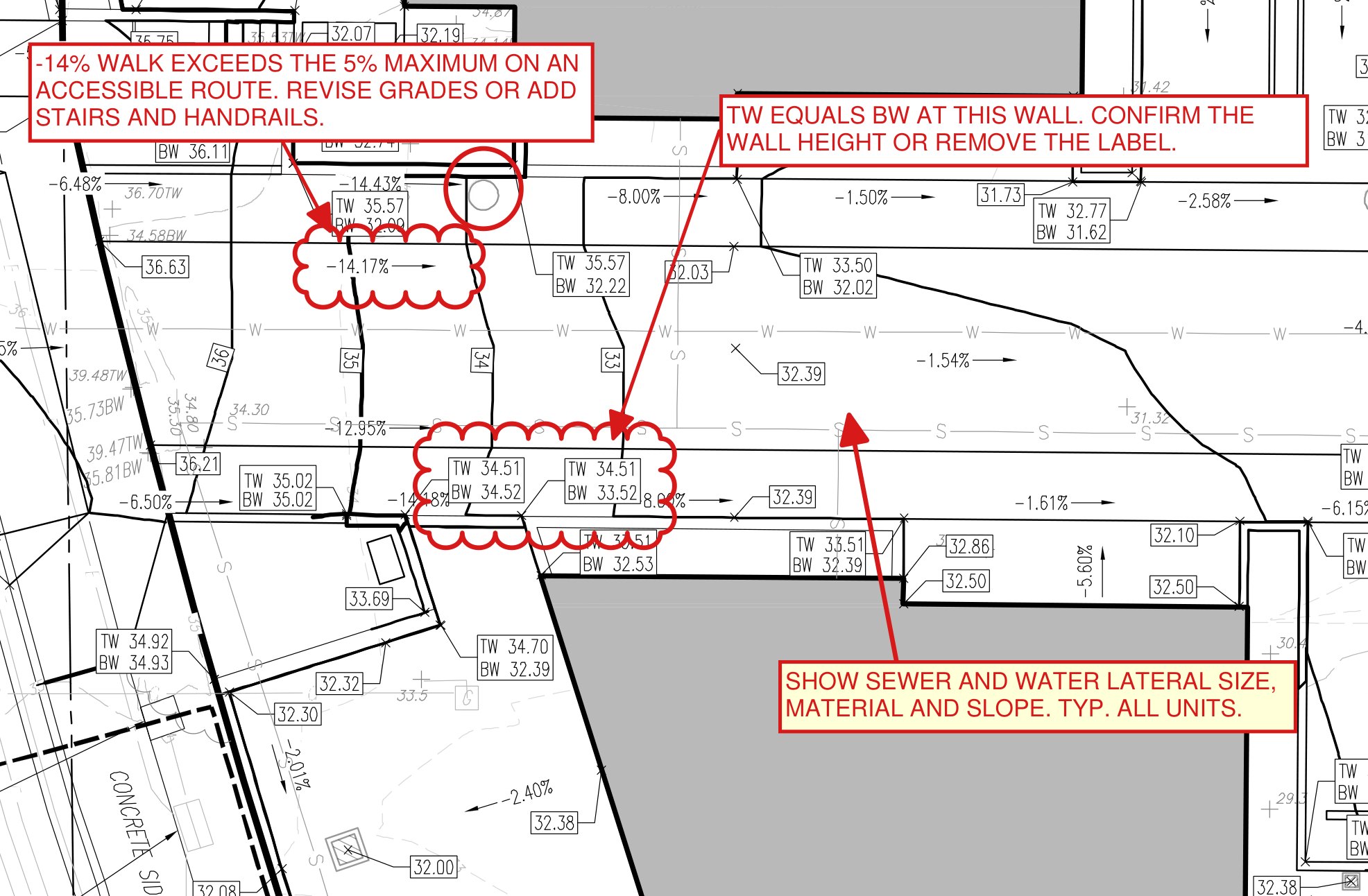
Edit linework the way you draft it.
Select a polyline, polygon or cloud and a blue grip sits on every vertex, with a bar on the middle of every segment. Drag a vertex to move it, drag a middle bar to add a vertex there, or right-click to delete one. Any segment can become a true arc: drag its middle grip to set the bow, as with a CAD polyline arc.
While you draw or measure, the pointer snaps to the endpoints, midpoints, intersections, perpendiculars and nearest points of the sheet's own linework, with the CAD snap marker so you know which. F3 turns snap on and off; each snap mode can be turned off on its own from the Snap button.
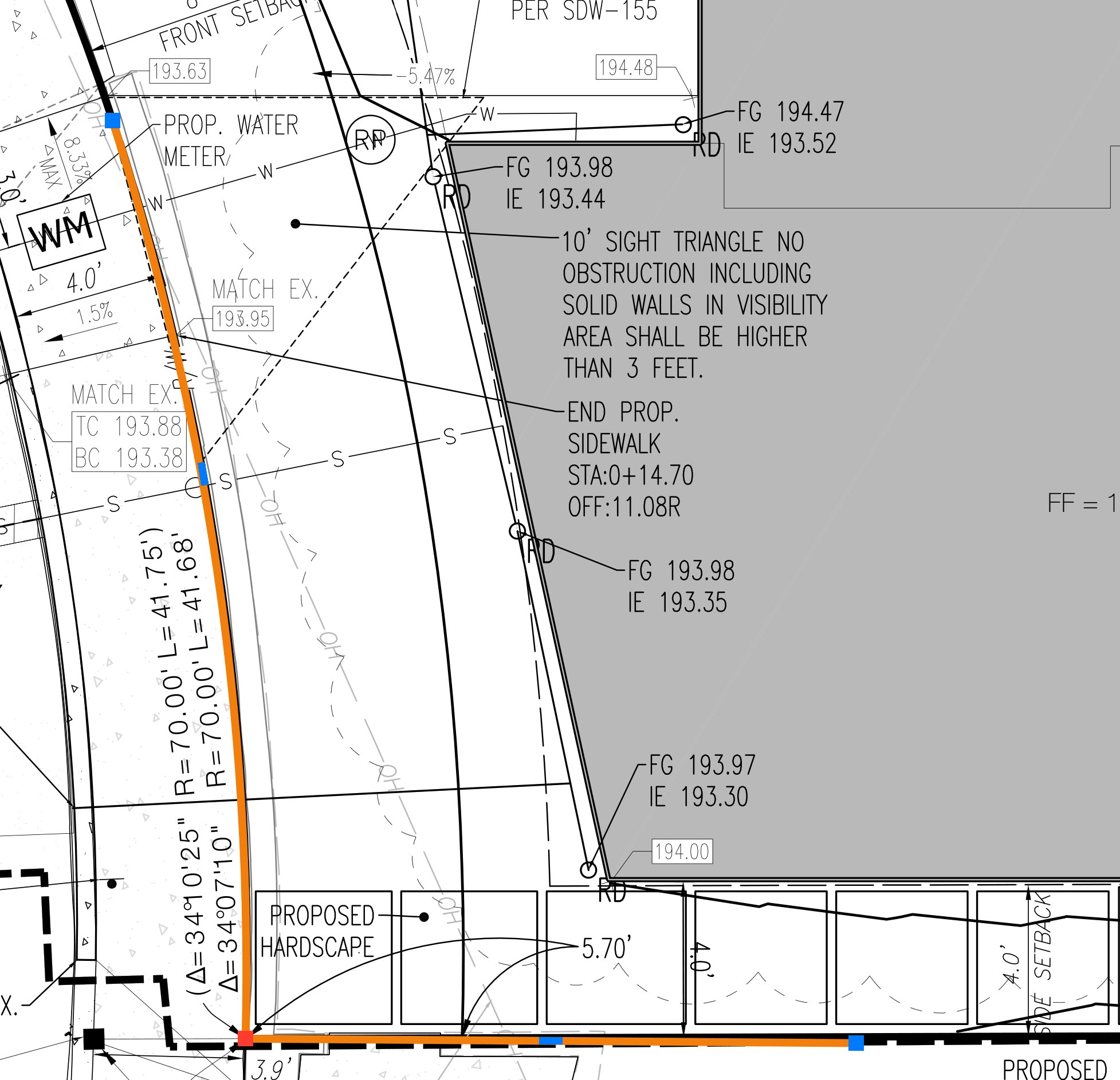
Notes that read like the sheet.
Rotate any text box or typewriter note: drag just outside a corner (15° steps, 1° with Shift), type an angle, or choose Align to a Line on the Sheet and click the street or property line it should follow.
Text options cover what a drafter expects: Helvetica, Times or Courier in any weight, underline and strikethrough, character spacing, baseline shift, all caps or title case, outline, a background color behind the words, justified text, line and paragraph spacing, and bulleted, dashed, numbered or lettered lists.
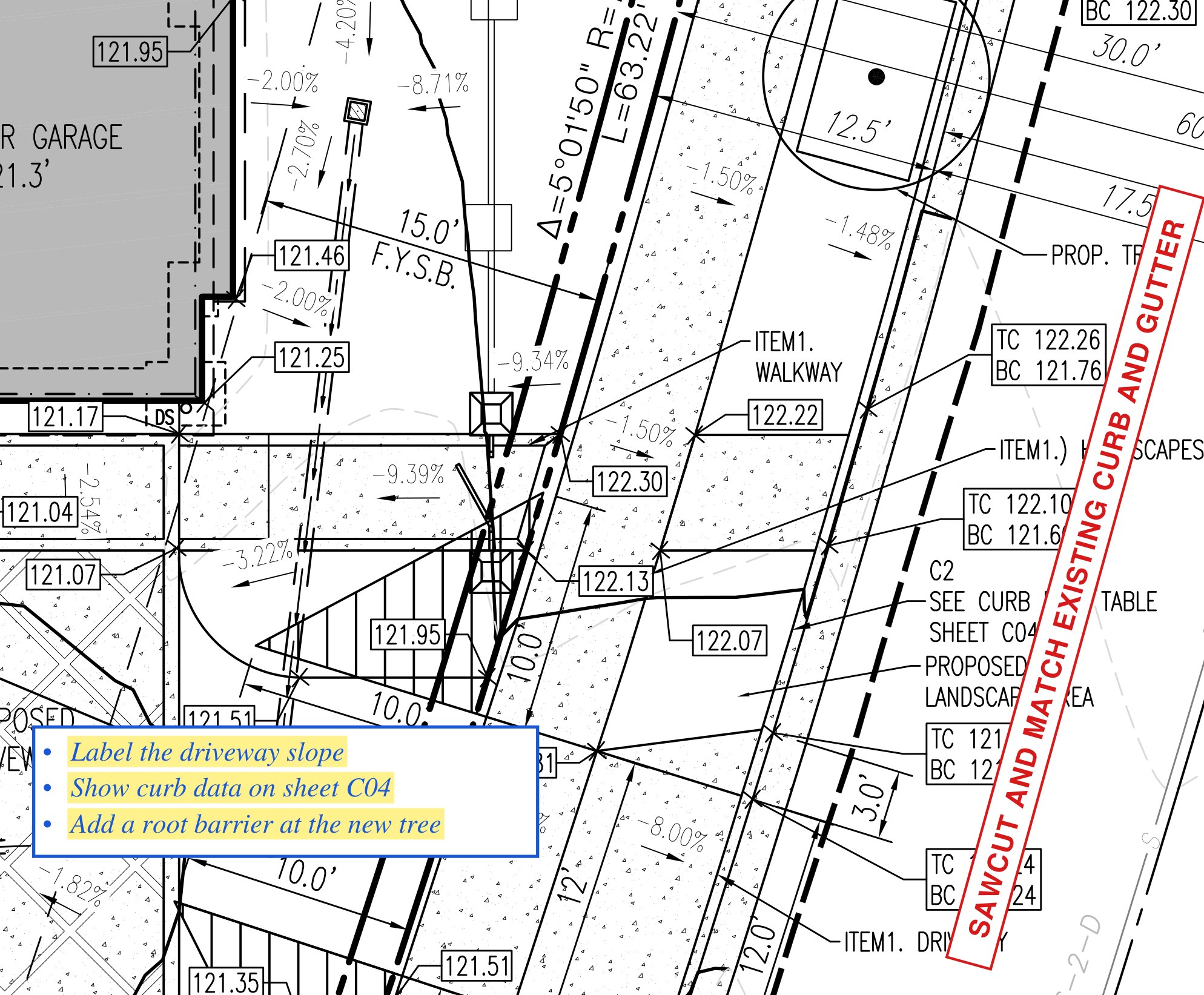
Groups, Align, Distribute, Select Similar.
Select several markups and one box surrounds them all: drag a corner to resize them together, or a side to stretch them one way. Align lines up left edges, centers, right edges, tops, middles or bottoms; Distribute spaces three or more evenly.
Group them (⌃⌘G) and a click on any one selects the lot. Select Similar (⇧⌘A) picks every markup of the same type and color on the sheet or on every sheet, so one change in Properties restyles them all.
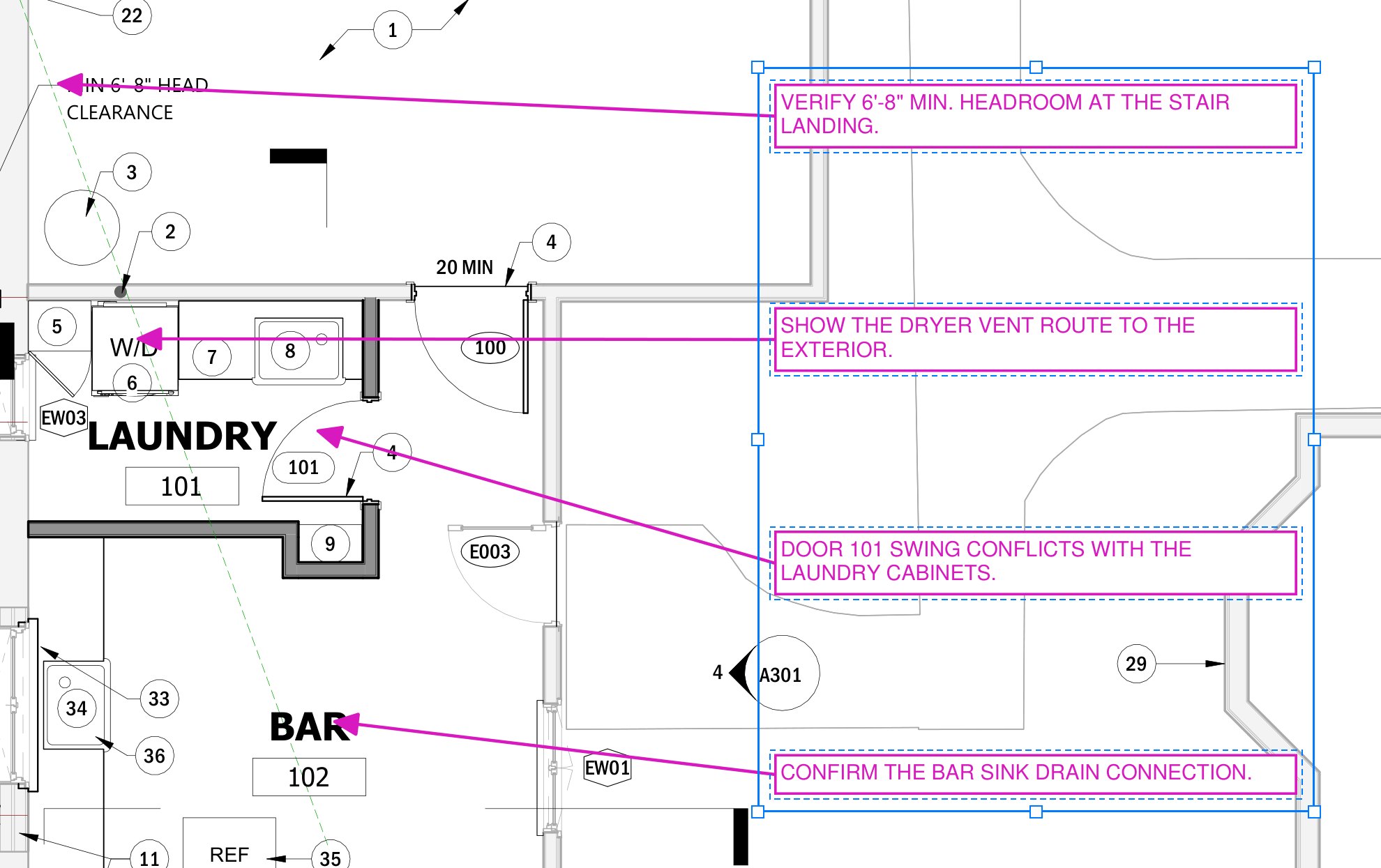
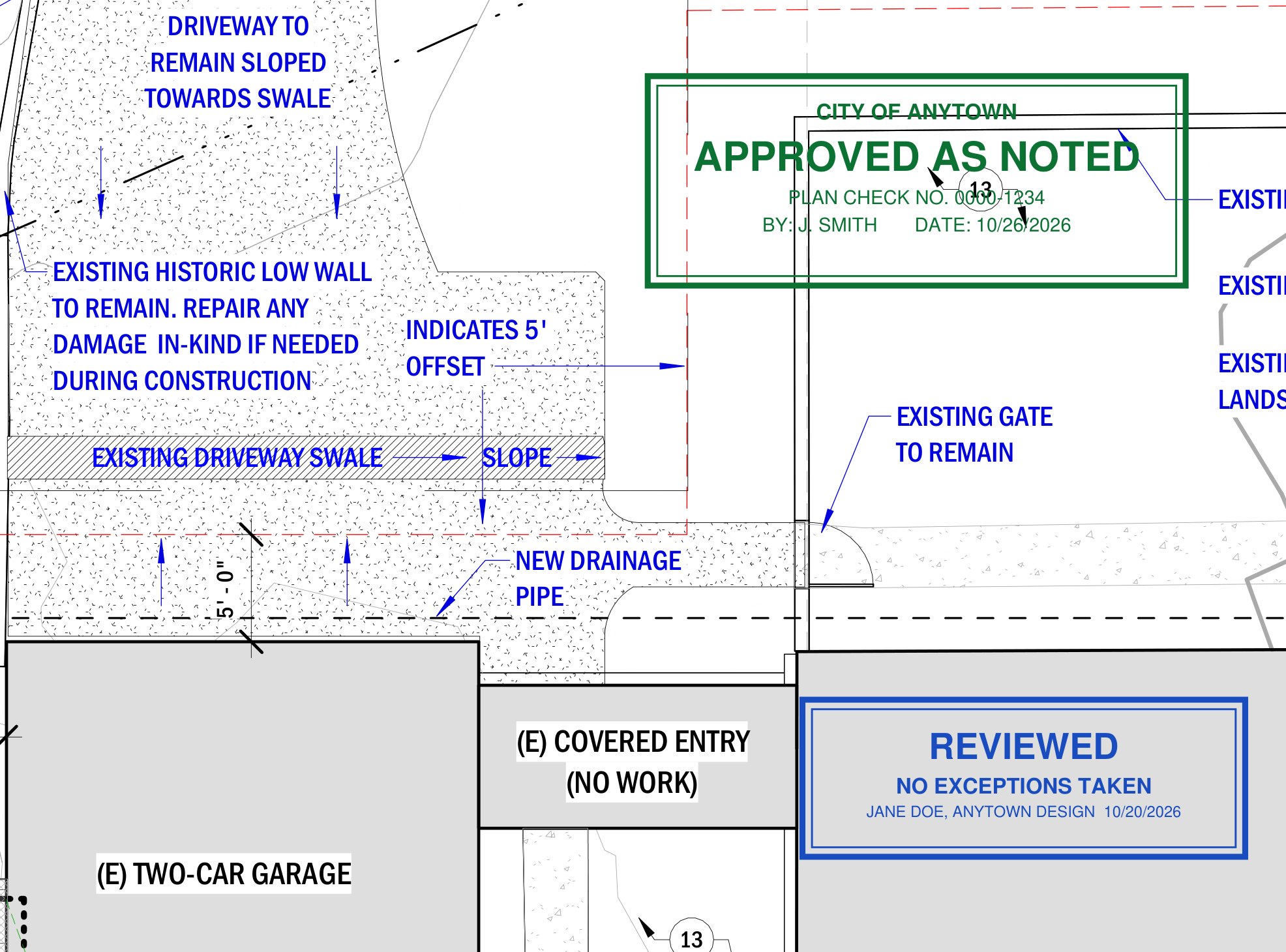
Stamp it and move on.
Pick a stamp from the Stamps button and click to place it at its own size, or drag to size it. Import Stamp turns any PDF or picture into a stamp, so the approval and review stamps you already use come along. Point the stamp folder at a shared drive and the whole office stamps alike. Marqup starts you off with fourteen common stamps, and New Stamp from Image trims a scanned stamp or signature to its ink.
Stamps are saved as standard PDF stamps, keep their own artwork, and are drawn into the sheet when you flatten.
Take off quantities
at the plotted scale.
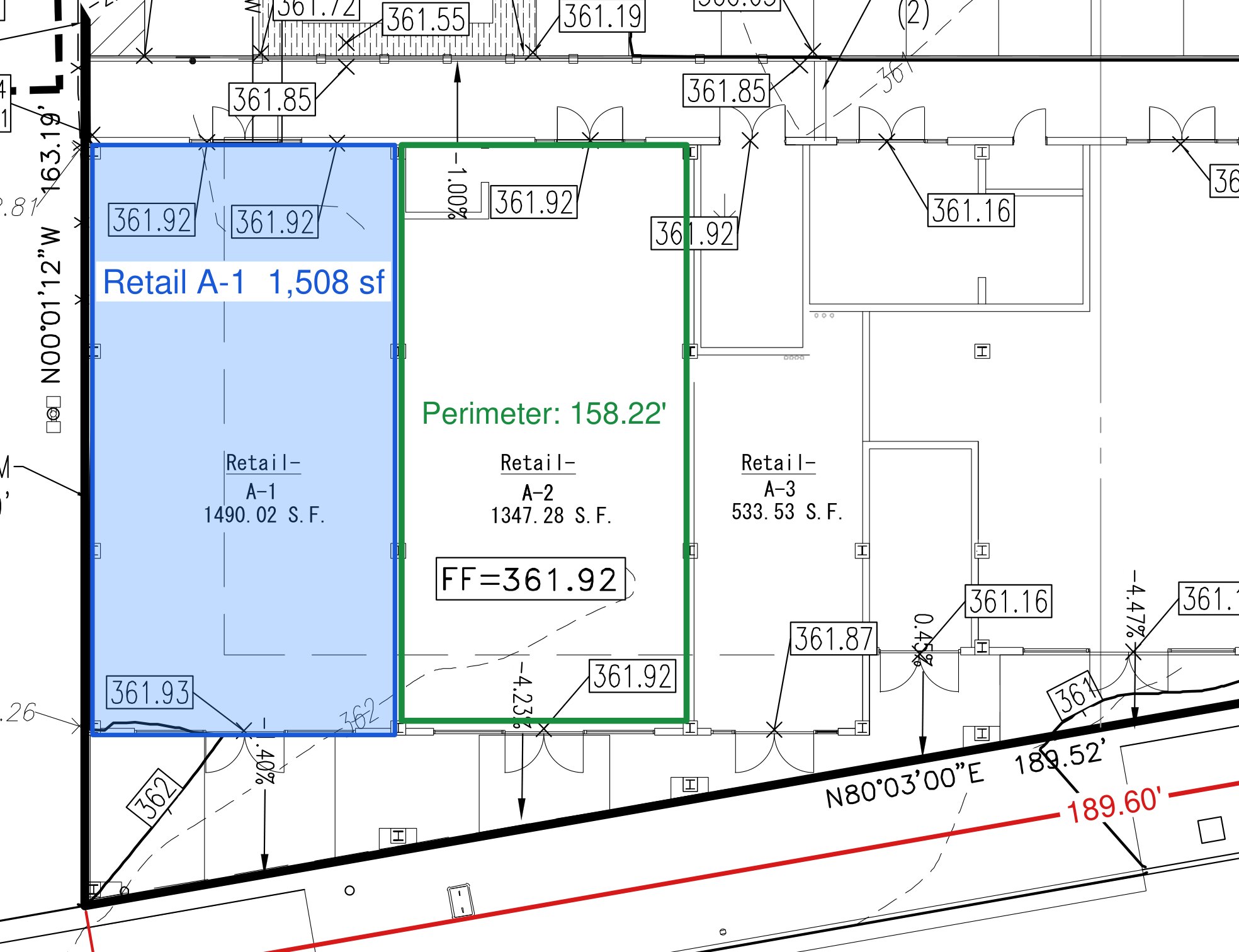
Marqup reads the scale AutoCAD writes into each viewport, so a length on a 1" = 20' sheet reads in feet the moment you draw it. Where a sheet carries no viewport, Read Scale from Sheet finds the scale note and checks it against the scale bar; you confirm before it applies. Anything else calibrates in two clicks on a known length.
Rename the words in front of any value, such as Retail A-1, and add a drop at each vertex of a length for pipe runs. Feet and decimals, or feet and inches with fractions.
Earthwork and areas in one click.
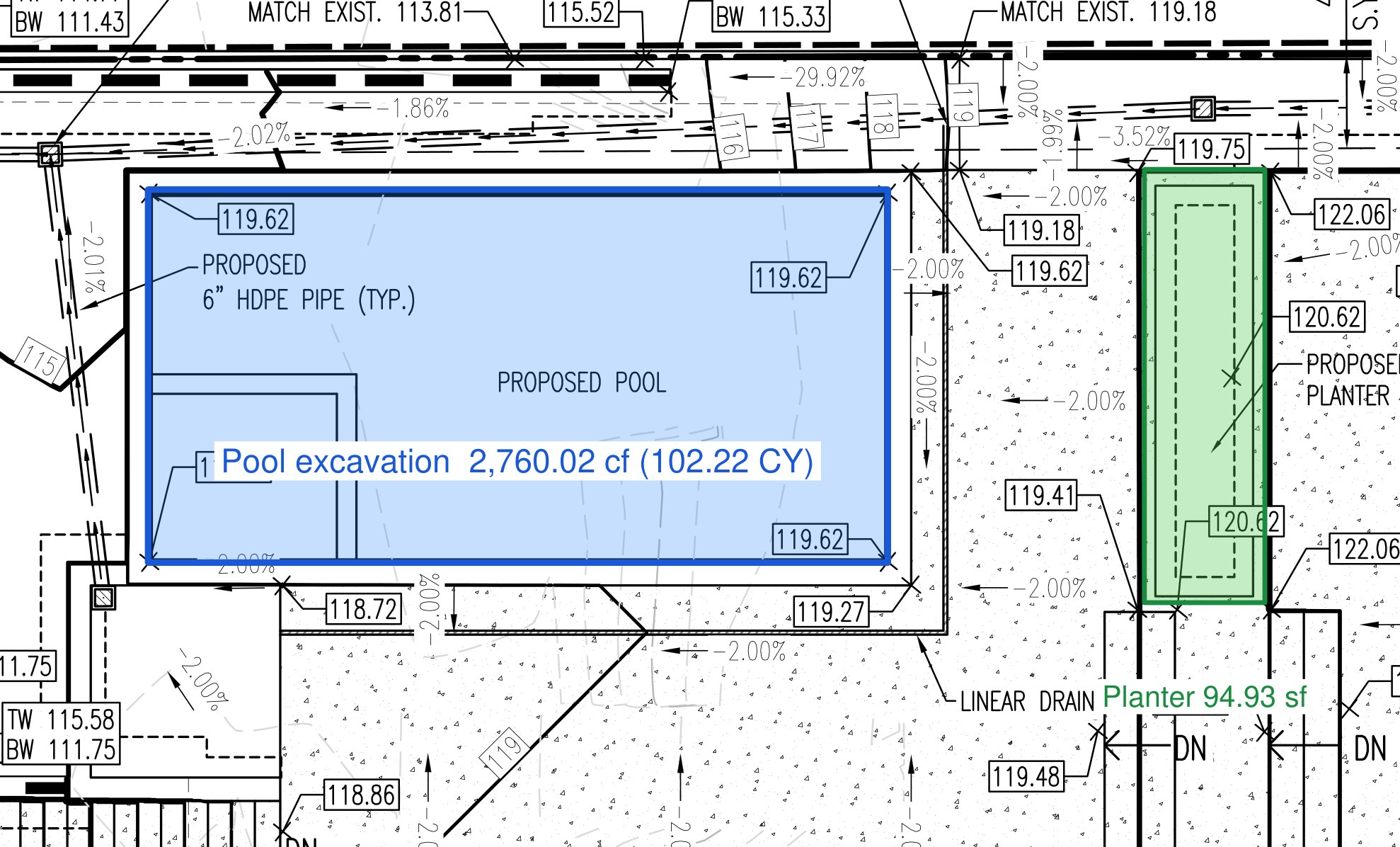
Draw an area, give it a depth, and Volume reads in cubic feet and cubic yards: a pool excavation, a footing, a basin. Dynamic Fill measures any closed outline already on the sheet: click inside a planter or a building pad and Marqup traces it from the linework and measures it exactly.
Angle takes three clicks; Radius and Arc Length take three points on a curve, so a curb return or a cul-de-sac reads straight from the drawing.
Count it, total it, show it.
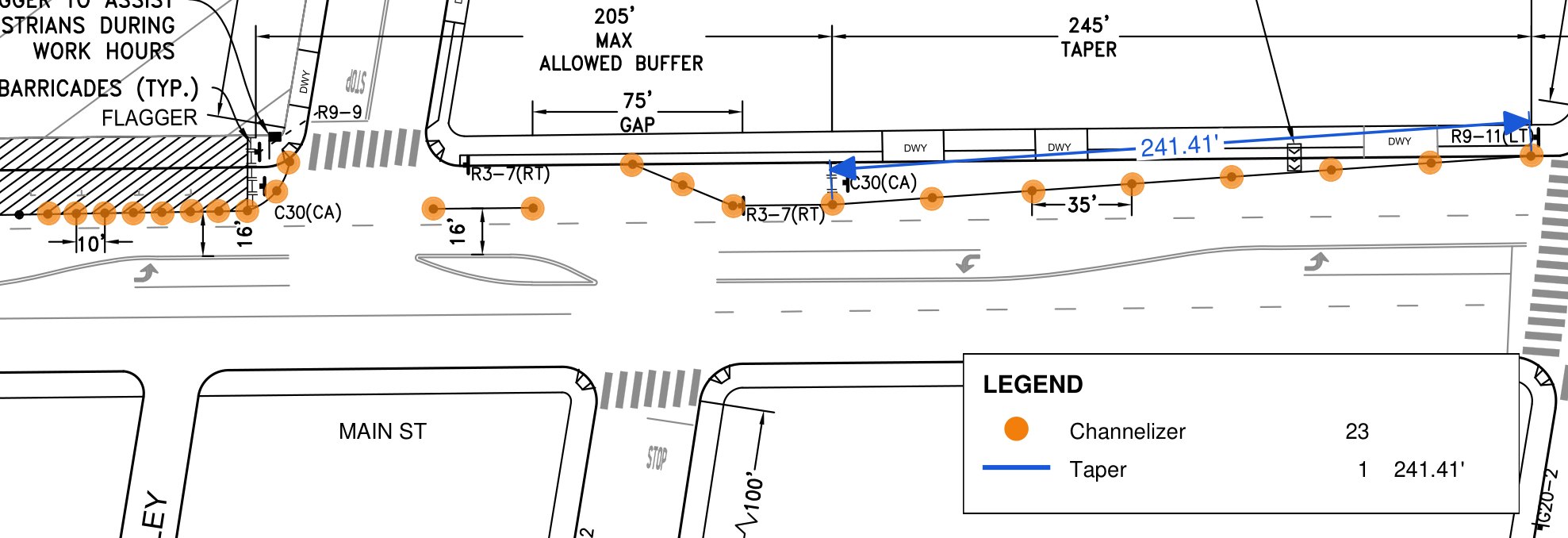
Count places a mark on each item, such as inlets, trees, cleanouts or traffic channelizers, and keeps the tally. Drag a Legend onto the sheet: it lists every kind of markup with its swatch, count and total, keeps itself current as you work, and names Highlight+ colors by their meaning.
Track every comment
until it is closed.
Every markup carries a status, a reply thread, its author, company and department. When a comment is addressed, Mark Complete closes it in one click: the status becomes Completed and a see-through box in the Done color is laid over it, so the sheet shows at a glance what is left.
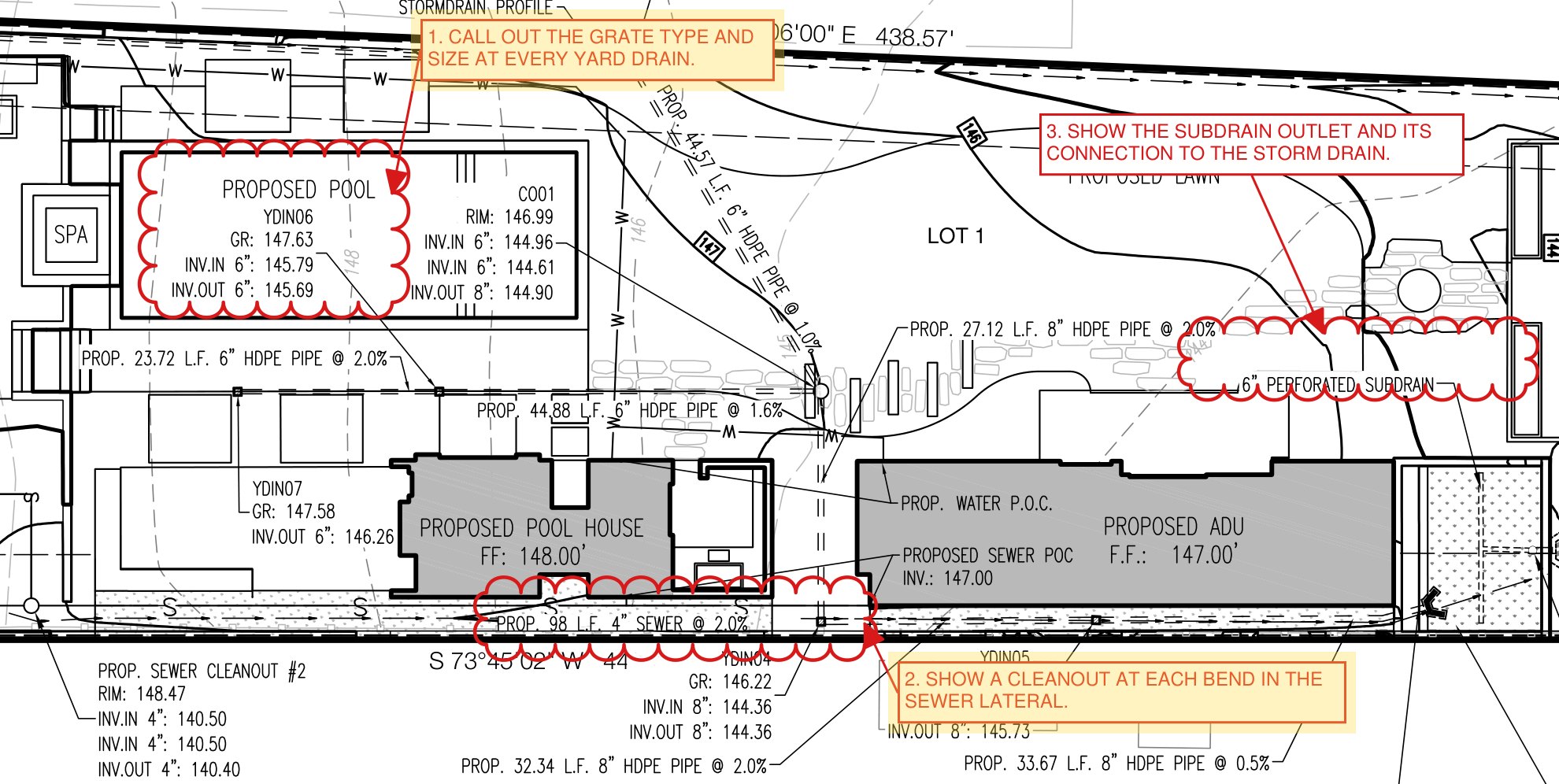
Highlights that mean something.
Hold the highlighter button for Highlight+: Done in yellow, Other Party in pink, Verified in green, Question in blue. Over sheet text the highlighter snaps to the words. Rename, recolor or add categories to match how your office reviews, and a Legend explains them on the sheet.
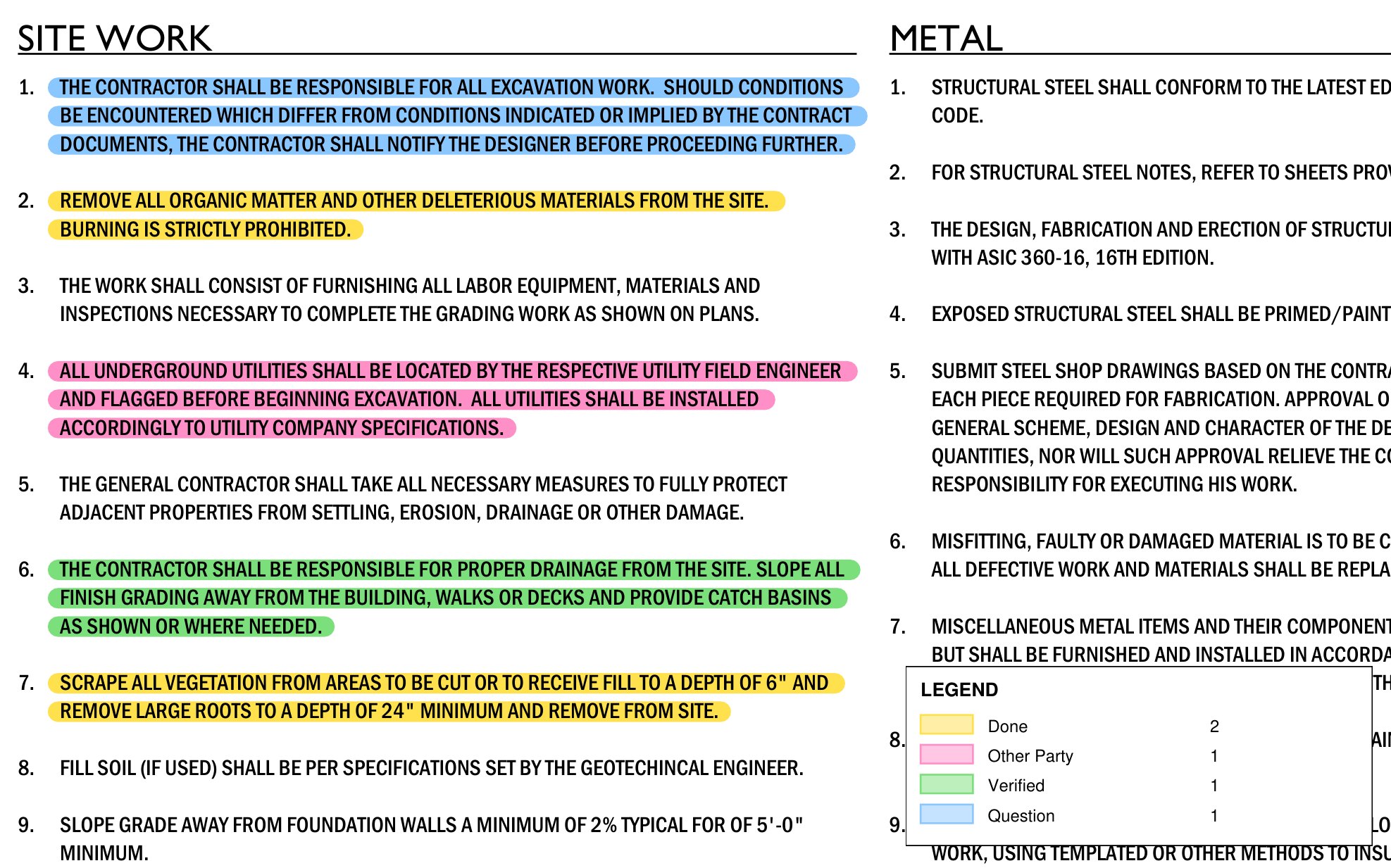
The whole review in one list.
The Markups List shows every markup on the set with its sheet, type, author, company, department, status, date and value. Sort by any column, filter by sheet, author, status or type, select rows to change them together, and click a row to go to the markup.
Export the list as CSV for a spreadsheet, or as a Markups Summary PDF with totals by type, ready to attach to a response letter.
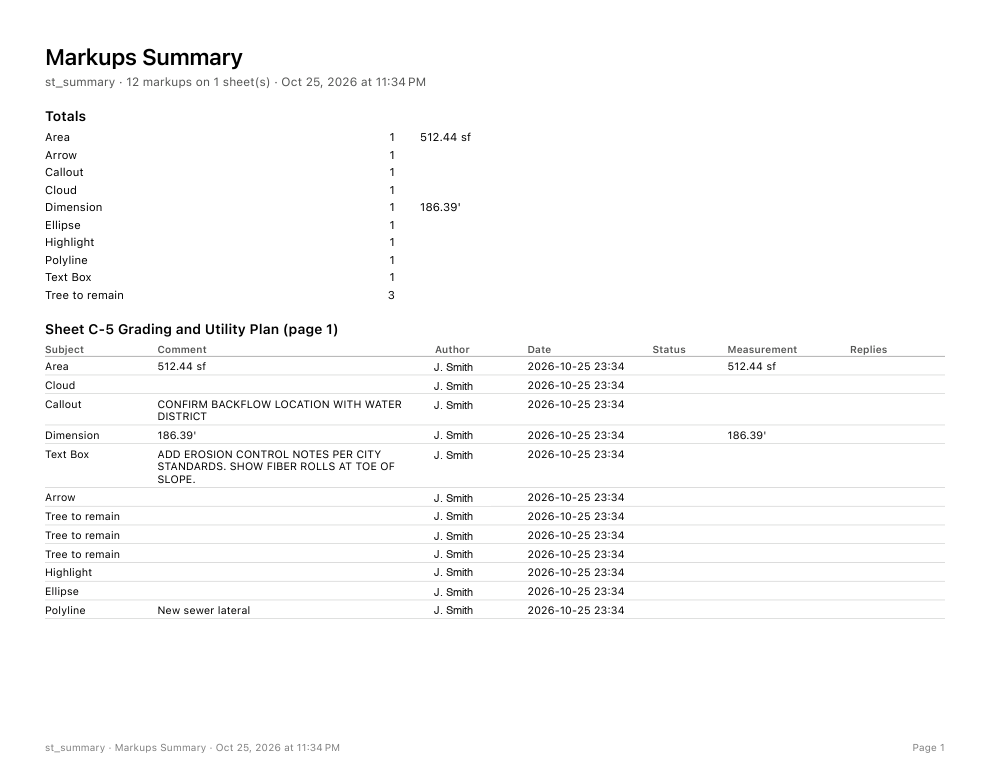
See what changed
between submittals.
Lay the new revision over the old: what only the old sheet draws shows red, what only the new one draws shows blue, what both draw stays black. Or let Marqup cloud every change on a copy of the new set, listed in the Markups List for you to step through. Sheets are matched by their labels, so a reordered set still lines up.
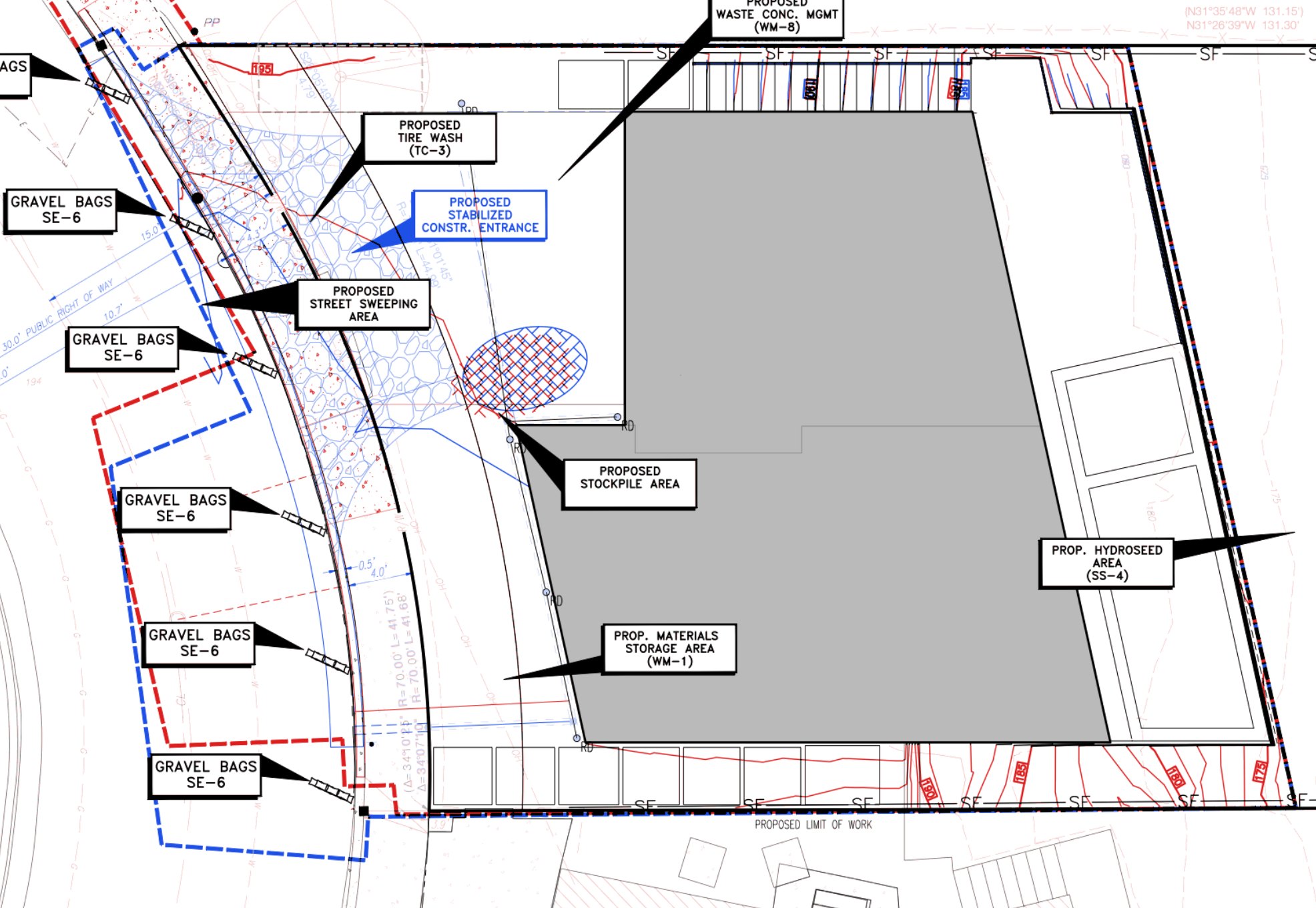
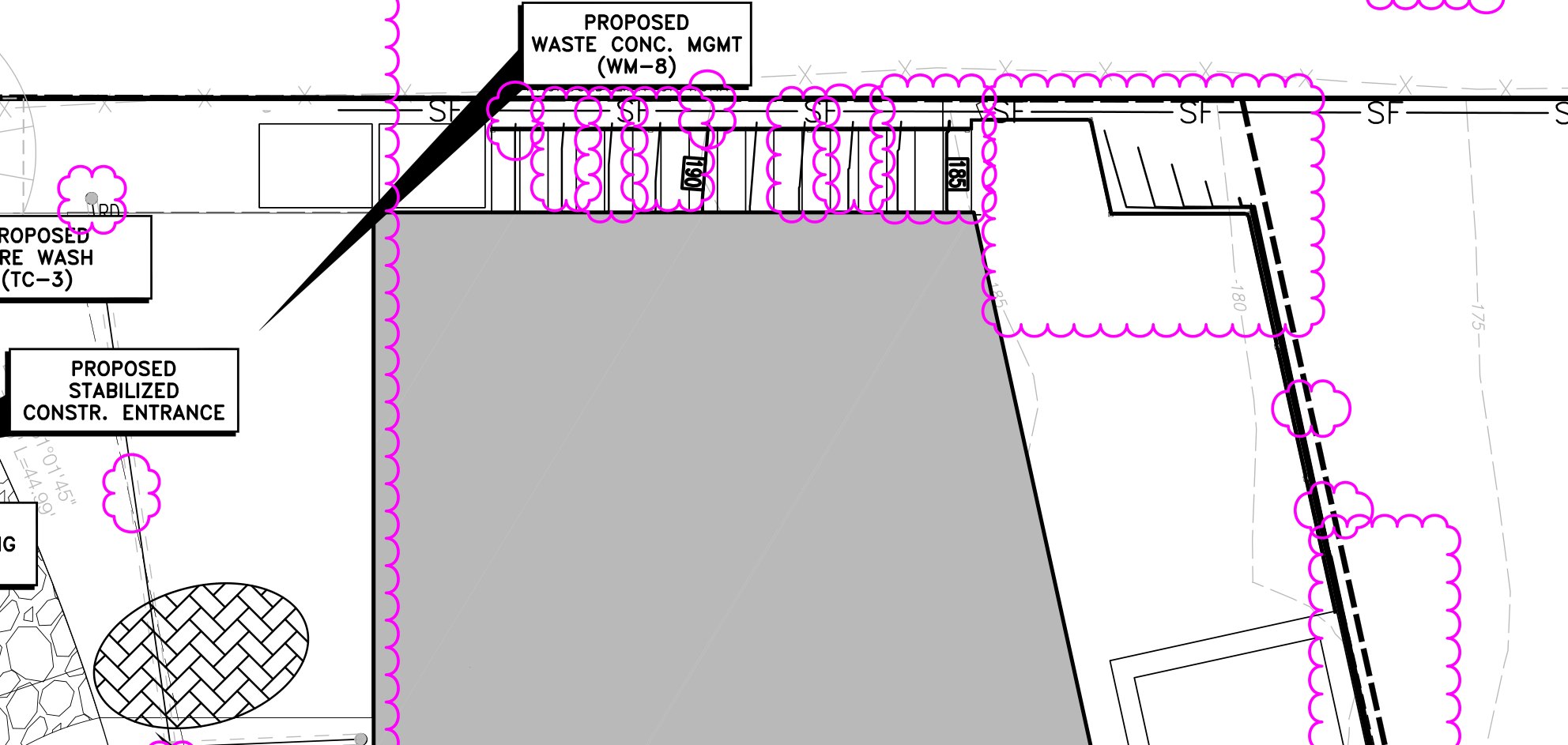
Slip Sheet brings a new revision in under your existing markups, bookmarks and links.
Find anything
on any sheet.
Search old scans like new sets.
Recognize Text reads scanned sheets, on the Mac and offline, and lays invisible words over the drawing. Find (⌘F) then searches the sheet text and the markup text across the set, lists every match by sheet, and zooms to each one, highlighted.
Sheet labels from the title block, Batch Link and Find all work on recognized sheets too.
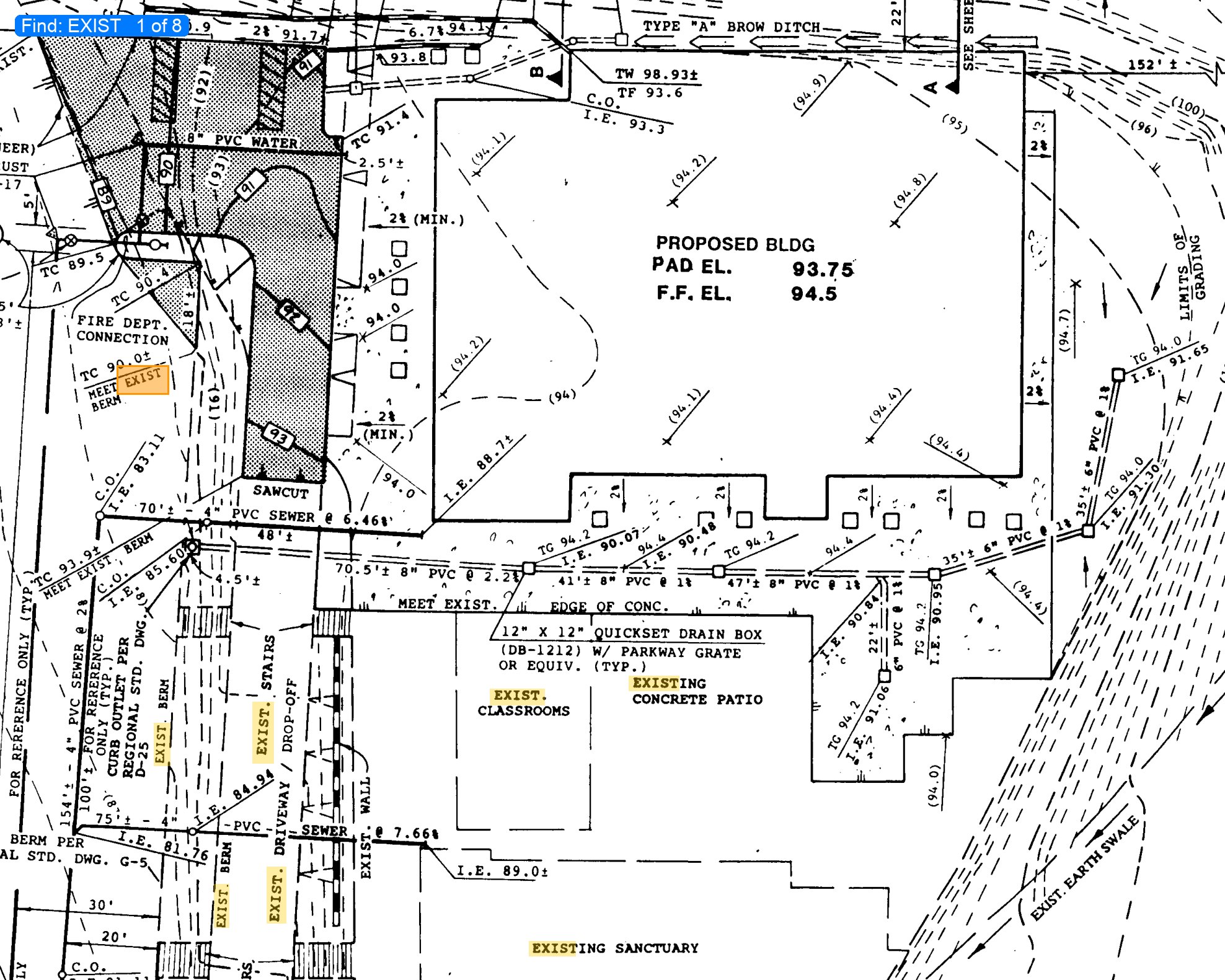
CAD layers, on and off.
The Layers window lists the CAD layers in the PDF by name. Turn irrigation, topography or annotation off and it disappears from every sheet; the choice is saved in the file, so the next reviewer sees the same view.
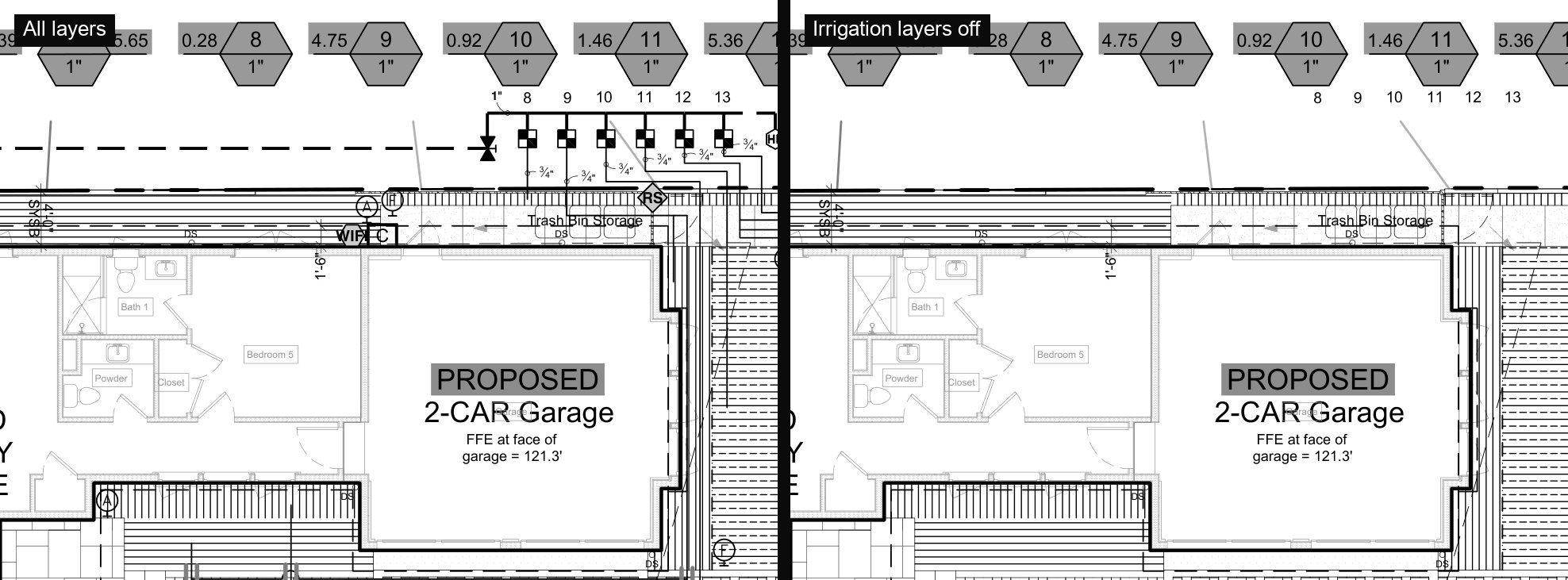
Draw a box around the sheet number once; Marqup reads the same spot on every sheet and names the sheets C-1, C-2, L-3. Bookmarks follow from the labels.
Finds every place a sheet number such as C-5 appears on another sheet and links each one to its sheet.
Drag a box and link it to a sheet or a web address. Hover a link to see it; click to follow.
One command before
the upload.
Agency e-plan portals, the City of San Diego among them, turn away PDFs that carry markups, layers, attached files or hidden data. Flatten for Submittal shows what it will clean up, each item with its own checkbox, then always writes a new file under a new name. Your working file keeps its markups for the next round of comments.
Built for sets,
not single pages.
Headers and footers take fields you drag in: page number, page count, sheet number, date and file name. Batch writes copies to a folder you choose and never changes the originals. Reduce File Size shrinks the pictures in a set and leaves the line work exactly as drawn. Redaction takes the text, line work and picture content under each box out of the file and saves a separate redacted copy; look through that copy before you share it.
New in
this release.
Mark text, line work or search results and apply: what is under each box is taken out of the file, not just covered. Saved as a separate redacted copy.
A speech-bubble callout with a tail, rounded corners and a drop shadow, saved so every PDF viewer shows it.
Four levels, from light to smallest. Pictures are scaled and re-saved; line work is never touched. Marqup reports what it saved.
The Markups Report to Word or Pages, and the Markups List to Excel or Numbers, ready for a response letter or a log.
Fourteen starter stamps, any picture dropped in the folder becomes a stamp, and New Stamp from Image turns a signature into one.
The pointer shows the tool in hand, and length, radius and area read out beside it while you draw.
Two sheets next to each other, such as a plan and its details, each fitted to its half.
Text recognition runs in the background, so Find works on sheets whose lettering CAD exported as line work.
Your project folders pinned in the start window, one click from the files you open every day.
Built for every
side of the table.
Architecture
Coordinate consultants without losing the thread. Lay each consultant's revision over the last, cloud what changed, and keep every comment sorted by company and department.
Engineering
From plan check to portal. Redline the check print with the clouds, callouts and linetypes your drafters already use, take off quantities at the plotted scale, then ready the set for the agency.
Construction
Take-offs and changes from the field office. Quantities straight from the bid set, and every bulletin checked against the last before it is built.
Agencies
Review that applicants can read. Marqup opens and saves standard PDF markups other PDF review apps read, so applicants see your comments with their status and replies intact, in whatever app they use.
Free to start.
Everything when you need it.
Marqup is free to open, view and mark up: clouds, text, lines and highlights, and three measurements per file. Every paid plan is the whole of Marqup, and comes with a 7-day free trial. If a plan lapses, you can still open and view everything you marked up.
Apple silicon
Nothing to convert.