Marqup User Manual · Version 0.8

User
Manual

Everything Marqup does, in the order you will meet it on a plan review: open the set, mark it up, measure it, track the comments, compare the next submittal, send it back.

01Quick start

Your first review in five minutes

  1. Open the set. Choose File › Open, drag a PDF onto the Marqup icon, or pick Open PDF on the start screen. Large plotted sets open in a fraction of a second; sheets draw as you reach them.
  2. Find your sheet. The sidebar lists every sheet by its label. Click one, or press the arrow keys to step through the set.
  3. Mark it up. Press C for a cloud, click the corners around the problem and double-click to finish. Press Q for a callout, click the point, then drag where the words go and type.
  4. Measure it. Press ⇧⌥L and click along a line. If the sheet was plotted from CAD the length reads in feet straight away; if not, Marqup offers to read the scale printed on the sheet.
  5. Check your work. Press ⌥⌘L for the Markups List: every markup on the set, with its sheet, author and status.
  6. Send it back. Press ⌘S. The markups are saved into the PDF as standard markups that any reviewer can open. For an agency upload, use File › Export › Flattened for Submittal.
No PDF yet?Choose Create PDF on the start screen, or File › Create: turn pictures, Word, RTF, web pages or text into a PDF, combine files, or scan from a scanner, camera or iPhone. In Finder, right-click any file › Quick Actions › Convert to PDF in Marqup.

Marqup works on standard PDFs. Nothing is converted and no copy is made: your markups are saved into the file you opened.

02The window

A tour of the window

The Marqup window: sheets on the left, tools along the top, properties on the right
Sidebar left · toolbars top and side · Properties right · bottom bar
Start screenShows when no file is open: Open PDF, Create PDF, Combine Files, Settings, and your recent files.
Title barThe sidebar button at the far left (click to show or hide the sidebar; its arrow picks Thumbnails, Bookmarks and the page layout), the file name, the tool sets, and Share and Properties at the right.
Option barThe thin strip under the title bar shows the settings of the tool in use: color, text size, bold and Autosize text box for text tools; line width, fill, line style and opacity for shapes; the sheet scale with Set Scale, Read, Calibrate and Snap for measuring tools; the Highlight+ colors for the highlighter. With markups selected it changes them instead. View › Option Bar (⌥⌘O) hides it.
SidebarThumbnails of every sheet with its label and scale, or the set's bookmarks. Right-click a thumbnail to rotate, extract, replace or delete pages.
Side toolbarsTool sets placed on the left or right edge, one or two columns deep. Measure sits on the left to start with.
SheetThe drawing itself. Scroll to move, pinch or hold Command and scroll to zoom; the spot under the pointer stays put. Hold Space to pan with any tool.
PropertiesThe right-hand pane: color, line width, fill, opacity, line style, font, measurement value, scale and replies for the selected markup. With nothing selected it shows the sheet's scale and the Set Scale, Calibrate and Read buttons.
Tool ChestThe tray button opens it in the lower half of the Properties pane: saved markups with their settings, ready to place again. Drag the divider to give it more room.
Markups ListOpens under the sheet (⌥⌘L, or the list button at the bottom left): every markup on the set with sheet, type, author, company, department, status, date and value.
Bottom barMarkups List, single page or continuous, first, previous and next sheet, zoom, Fit Width and Fit Page, Clean Screen, file info, then the sheet name, page number, scale, sheet size and zoom.
Clean Screen⇧⌘F hides every panel and toolbar, leaving only the sheet. Press it again, or Esc, to bring them back.
Settings⌘, Five panes: General (your name, company and department, written on every markup, and Light, Dark or Match System), Navigation (zoom and scroll), Tools, Measure and Advanced.

Other windows

Find⌘F searches the sheet text and the markup text across the set; results list by sheet.
LayersThe CAD layers in the PDF by name. Turn one off to hide it on every sheet.
ComparePick an older and a newer set to overlay or to cloud what changed.
BatchOne operation over a folder of PDFs, written as copies.
Highlight ColorsName, recolor and describe the Highlight+ colors.
Send FeedbackHelp › Send Feedback or Report a Bug: a short form that becomes an email in your mail app.
03Toolbars

Toolbars where you want them

Tools come in five sets. Each set can sit in the title bar, on the left or right edge, float in its own small window, or be hidden.

FileOpen, Save, Print, Share, Undo, Redo.
SelectSelect, Pan, Zoom and Select Text.
DrawCallout, Callout Plus, Text Box, Typewriter, Cloud, Cloud+, Rectangle, Ellipse, Line, Arrow, Dimension, Polyline, Polygon, Pen, Highlight, Mark Complete, Image.
MeasureCalibrate, Length, Area, Perimeter, Volume, Dynamic Fill, Count, Angle, Radius, Arc Length.
StampsThe stamp button with its arrow: pick a stamp, import one, or open the stamp folder.

Move a toolbar

  1. Right-click any side or floating toolbar and choose where it goes: Top, Left, Left Second Column, Right, Right Second Column, Floating or Hide.
  2. Or hold Command and drag it to another edge; it snaps there. Drop it away from the edges and it floats.
  3. For bigger changes choose Edit Toolbars (right-click a toolbar, or View › Toolbars). Grips appear on every toolbar so you can drag without Command; click Done Editing Toolbars when finished.
  4. Each side can stack two toolbars side by side, at the same icon size as the title bar.

The title bar

Right-click the title barIcon and Text, Icon Only, Text Only, and Customize Toolbar…, which lets you drag sets into and out of the title bar.
The » buttonShows when the window is too narrow for every set. Click it for the tools that did not fit, listed by name. A long set such as Draw splits in two, so only its second half moves into » first; Stamps, Share and Properties always stay.
Pick buttonsView › Toolbars › Customize Toolbars… shows or hides single buttons within a set.
Start overView › Toolbars › Reset Toolbars puts every set back where it began.
04Markup tools

Draw a markup

Pick a tool from a toolbar or press its key, then click on the sheet. Lines, clouds and polylines take one click per corner; double-click or press Return to finish. Press Esc to put the tool down. View › Reuse Tools (⌥⌘K) keeps a tool picked after each markup.
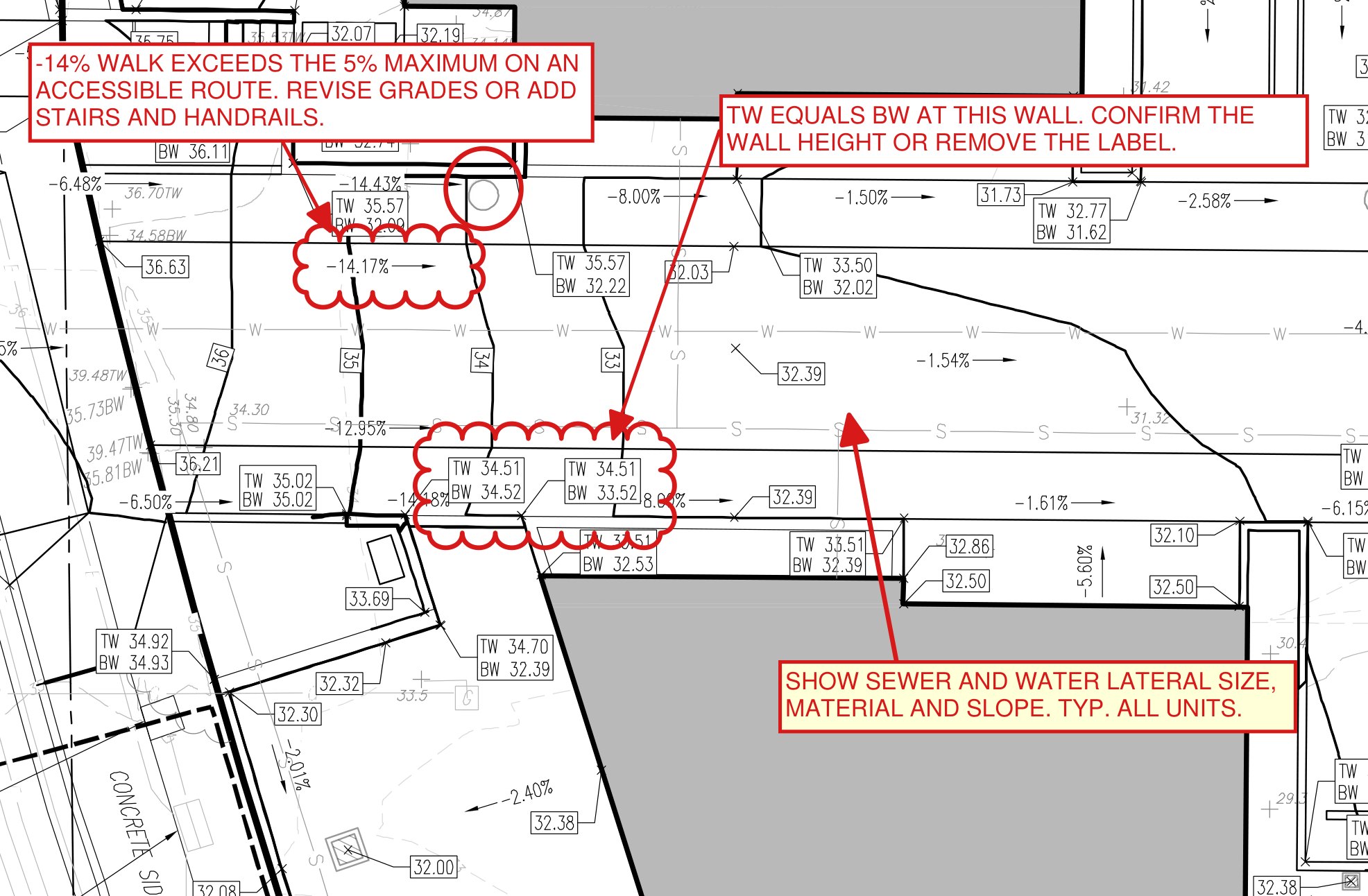
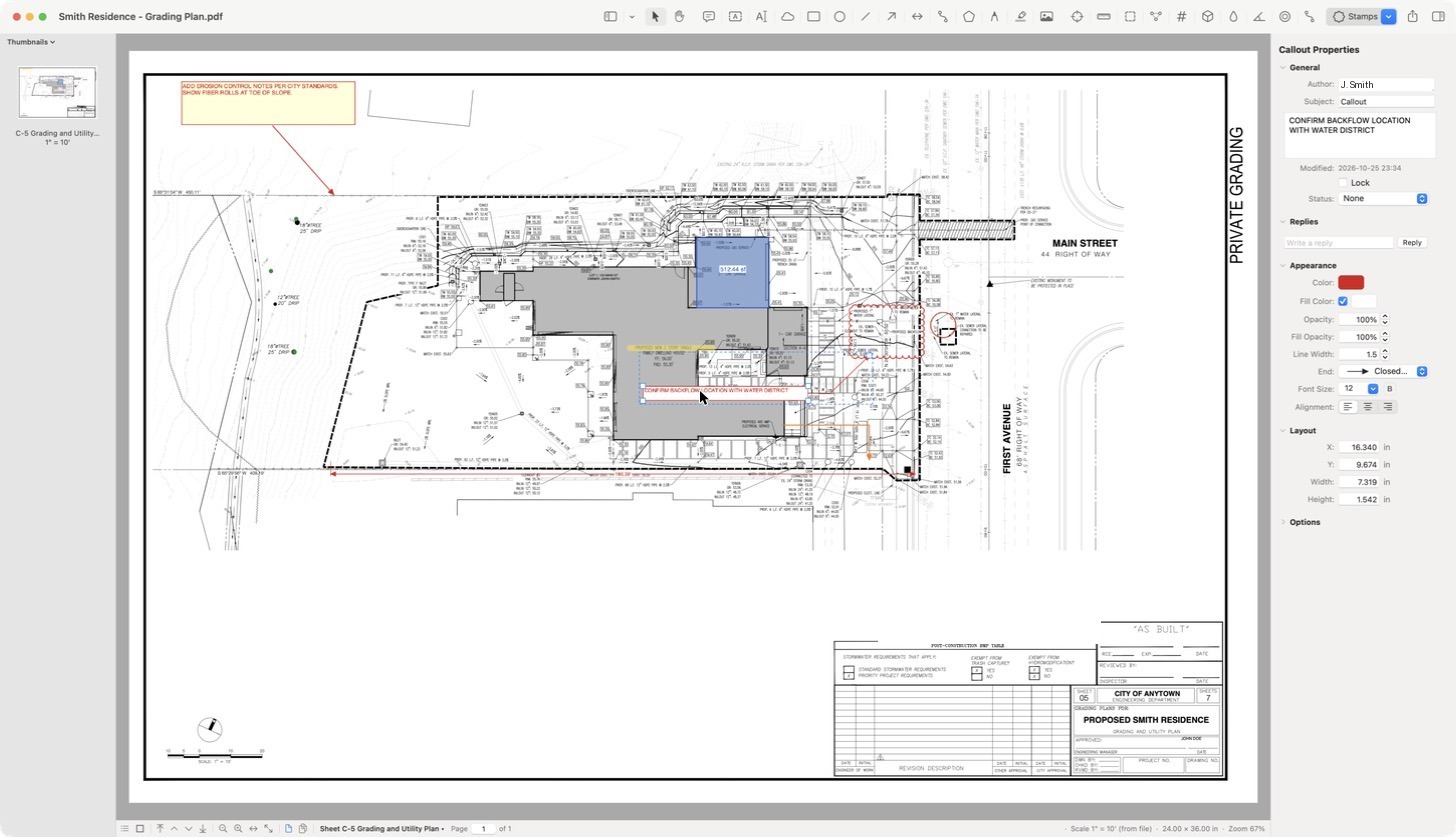
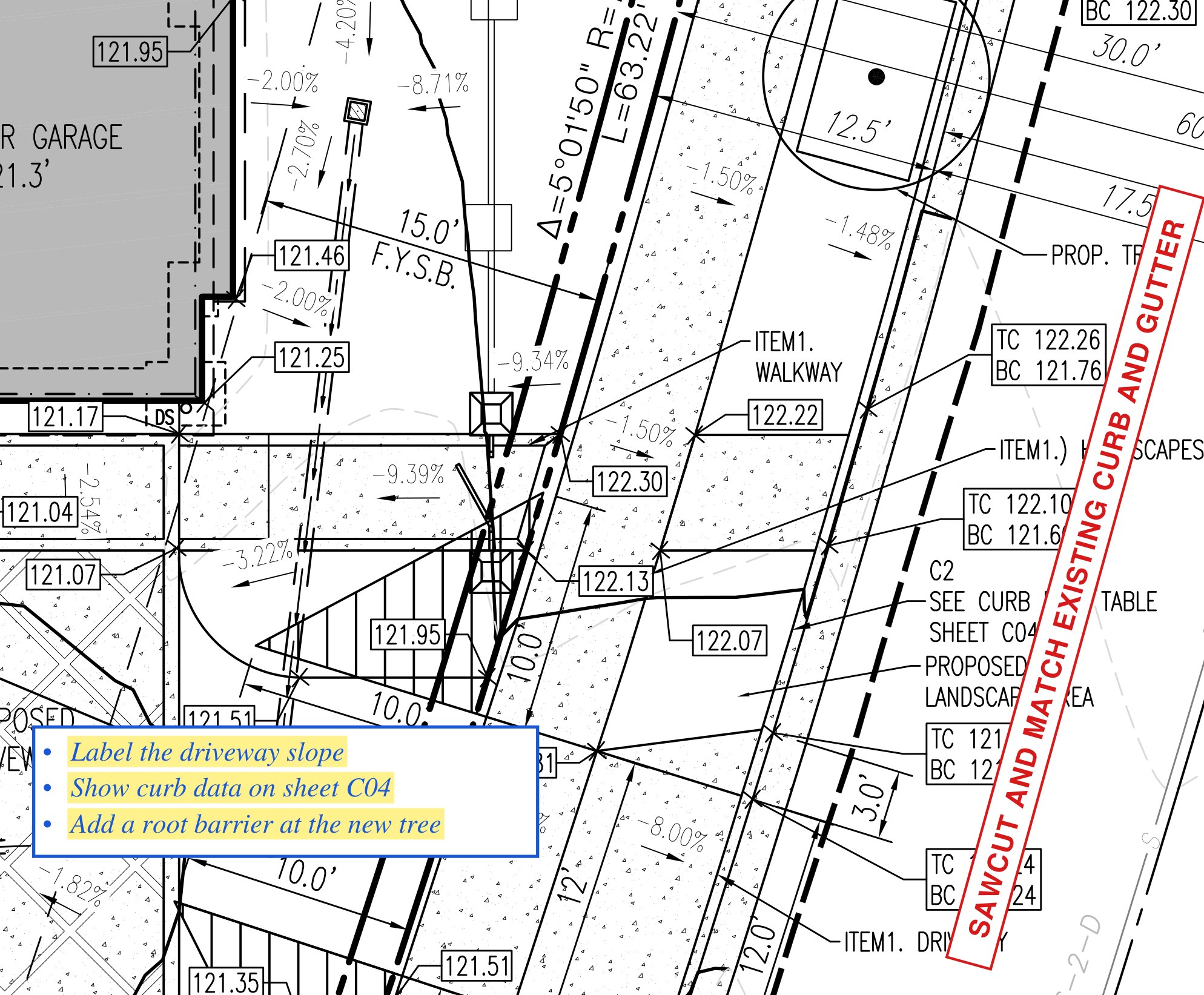
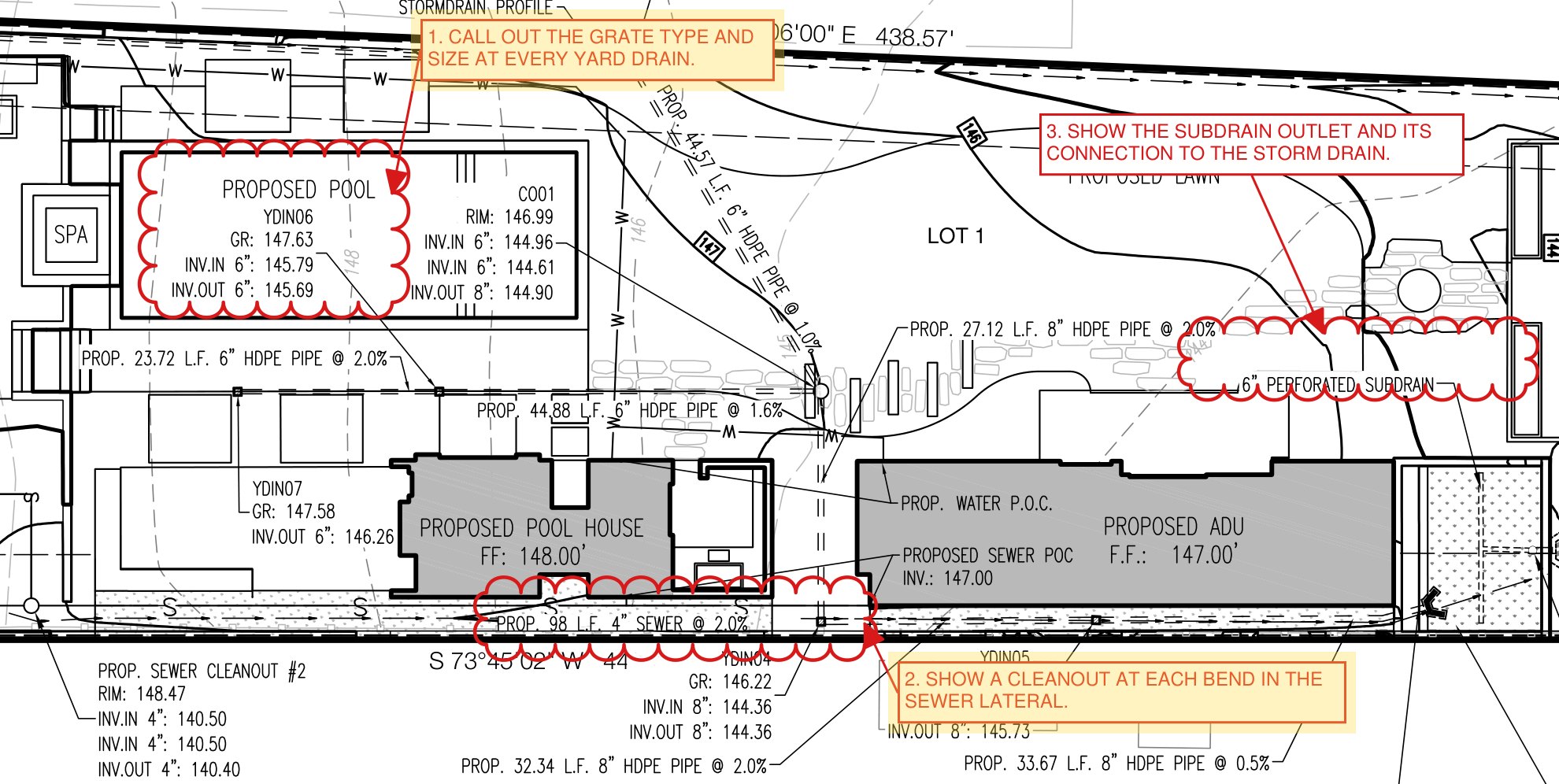
Clouds, callouts, a text box and an arrow marking up walks and walls on a grading plan
Clouds, Cloud+, callouts and a text box on a grading plan

Select and move around

Select VClick a markup to select it, Shift-click to add more, or drag a box around several. Drag to move, drag a grip to reshape. Arrow keys nudge the selection (Shift for bigger steps).
Pan ⇧VDrag the sheet. Holding Space, or dragging with the middle mouse button, does the same with any tool.
Zoom ZClick to zoom in, Option-click to zoom out, or drag a box to zoom to it.
Select Text ⇧TSelect the sheet's own words to copy them.
Snapshot GDrag a box to copy that part of the sheet as a picture.

Text and comments

Callout QClick the point, then drag the text box. The leader follows when you move the box; right-click to add or delete leaders.
Callout Plus ⇧QA speech bubble with a tail. Drag the tail's tip, its base width and the corner rounding by their grips; Properties sets a drop shadow (blur, offset, opacity, angle and color). Every PDF viewer shows it as drawn.
Text Box TDrag a box and type. Font, size, alignment and border are in Properties. ⌥Z fits the box to its text.
Typewriter WClick and type, with no box or border: for filling in forms and title blocks.
Cloud CClick the corners of the area, or drag a box. Arc size follows the line width.
Cloud+ KA cloud with a callout in one step: draw the cloud, then click where the text goes.

Shapes and lines

Rectangle · Ellipse R EDrag. Hold Shift for a square or circle.
Line · Arrow L AClick both ends. Line styles include your CAD linetypes, labeled for water, sewer, gas and force main; arrowheads are set in Properties.
Dimension DClick two points, then move to set the offset and click. The length is written at the sheet scale.
Polyline · Polygon ⇧N ⇧POne click per corner. Edit them as in CAD: drag a vertex grip, drag a segment's middle bar to add a vertex there, right-click a corner to add or delete a vertex, or turn any segment into a true arc and drag its middle grip to set the bow. Hover a grip for its menu.
HatchClosed shapes (rectangles, ellipses, polygons and areas) take CAD hatch patterns from Properties.
Pen PFreehand, with a round marker, chisel highlighter or crayon tip.
ImagePlace any picture file.
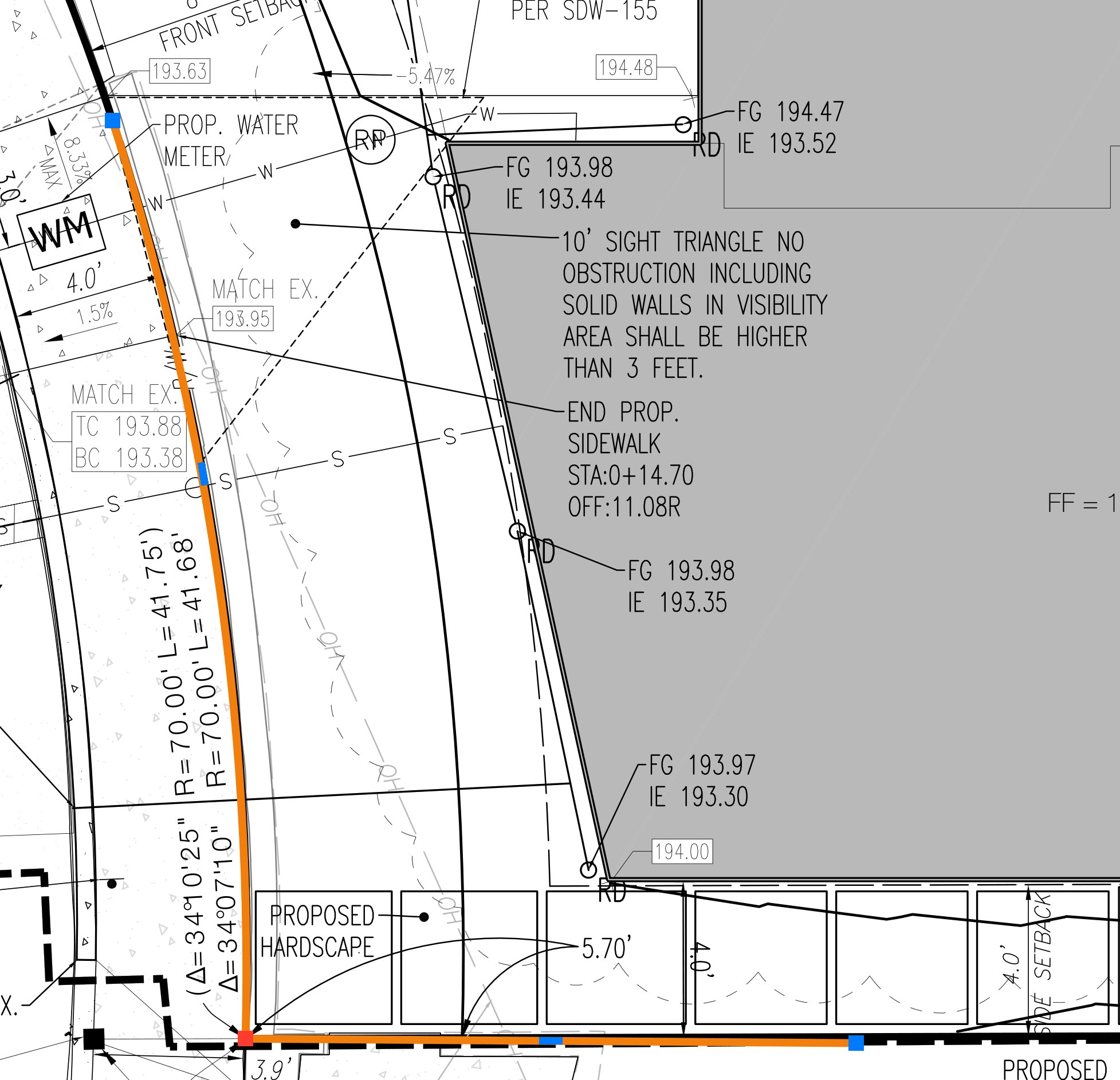
A polyline along a curved back of walk with blue vertex grips and a middle grip on its arc segment
A selected polyline: vertex grips, middle grips, one arc segment

Highlight, stamps and close-out

Highlight HOver sheet text it snaps to the words. Hold the button or right-click it for Highlight+: colors that mean something, such as Done (yellow), Other Party (pink), Verified (green) and Question (blue). Edit Highlight Colors… renames, recolors or adds them.
Mark CompleteClick any markup: its status becomes Completed and a see-through box in the Done color is laid over it.
Stamp SPick a stamp from the Stamps button, click to place it at its own size or drag to size it. Import Stamp… adds any PDF or picture; your stamp folder (Documents › Marqup › Stamps to start, with fourteen starter stamps) can be moved to a shared drive for the whole office. Any picture dropped in the folder works as a stamp. New Text Stamp makes a word stamp; New Stamp from Image trims a picture to its ink, so a signature signed on a blank page in Preview becomes a stamp. Stamps keep their shape as you size them; hold Shift to stretch.
LegendDrag a box: it lists every kind of markup on the sheet with its count and total, and updates as you work. Highlight+ colors appear by name.
HyperlinkDrag a box, then choose a sheet or type a web address.
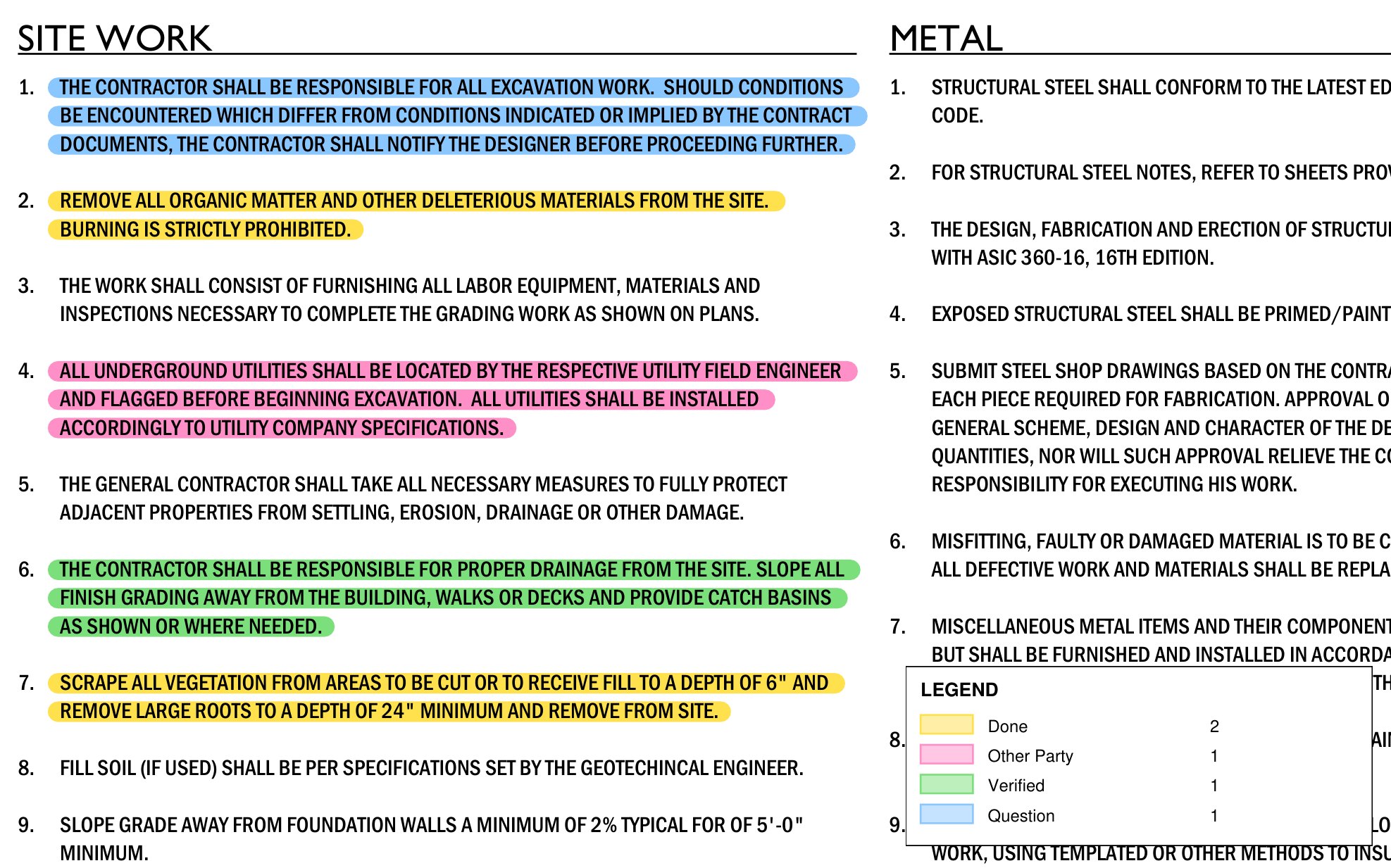
General notes highlighted in four Highlight+ colors with a legend
Highlight+ colors with a Legend
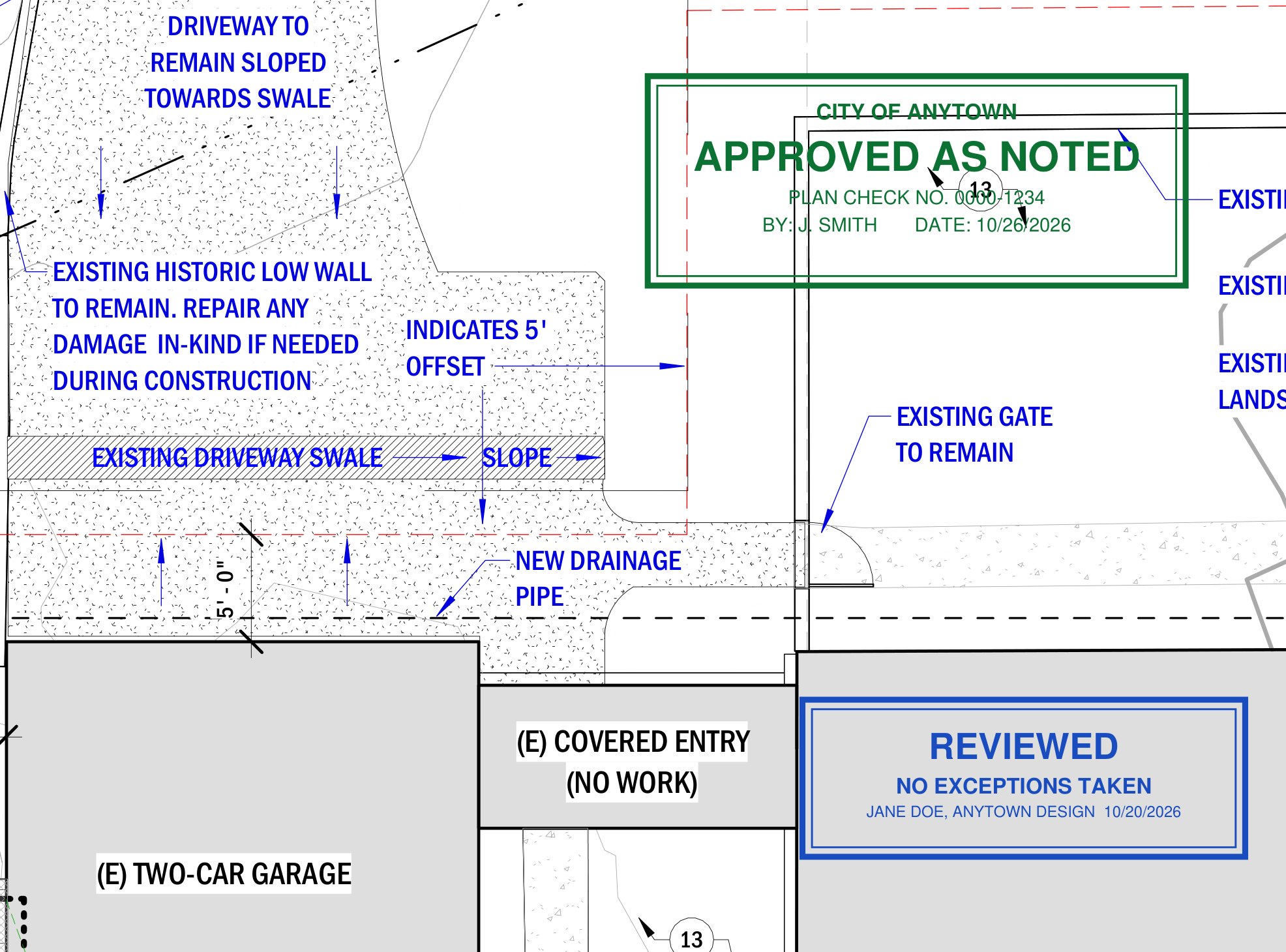
An Approved as Noted stamp and a Reviewed stamp on an architectural site plan
Imported review stamps (names made up)

Text options

Font · TypefaceProperties › Text: Helvetica, Times or Courier, the fonts every PDF reader has, in Regular, Bold, Italic or Bold Italic, at any size.
B · I · U · SBold, italic, underline and strikethrough.
More optionsThe gear button: character spacing, baseline shift, capitalization (All Caps, Title Case), outline, and a text background color behind the words.
AlignmentLeft, center, right or justified.
SpacingLine spacing, and space before and after each paragraph.
Bullets & listsBullets, dashes, numbers or letters, with the indent from the marker to the text.
Box too small?Text that does not fit is cut off at the box's edge. Make the box bigger, or turn on Autosize text box in the option bar.
A note rotated to run along a skewed street and a bulleted note with a text background on a grading plan
A rotated text box along a street; bullets, Times italic and a text background

Edit any markup

PropertiesColor, width, fill, opacity and line style. Set as Default makes the next markup of that kind match; Add to Tool Chest saves it to place again.
Right-clickStatus, lock, draw order (⌘] ⌘[), copy and delete.
Select Similar ⇧⌘ARight-click a markup › Select Similar: every markup of the same type and color, or the same type, on this sheet or on every sheet. Change them all at once in Properties or the option bar. Edit › Select Similar picks same type and color on every sheet.
Group · Ungroup ⌃⌘G ⌃⇧⌘GSelect two or more markups on a sheet and group them: a click on any one selects them all, and they move together. Groups are saved the standard PDF way, so other markup apps keep them too.
Group boxWith several markups selected, one box surrounds them all. Drag a corner grip to resize them together (Shift keeps the proportions) or a side grip to stretch them one way.
Align · DistributeRight-click › Align: line up left edges, centers, right edges, tops, middles or bottoms, or space three or more evenly across or down. A group moves as one piece.
RotateText boxes and typewriter text: move just outside a corner and drag. It turns in 15° steps, or 1° with Shift. Then type an angle and press Return to set it exactly. Right-click › Rotate also has Rotate…, 90° left and right, Reset, and Align to a Line on the Sheet (click the line the text should run along).
Lock ⇧⌘LA locked markup cannot be moved or changed until unlocked.
Apply to PagesRight-click › Apply to Pages… copies the selected markup to other pages (for example 1-3, 6), such as a stamp on every sheet.
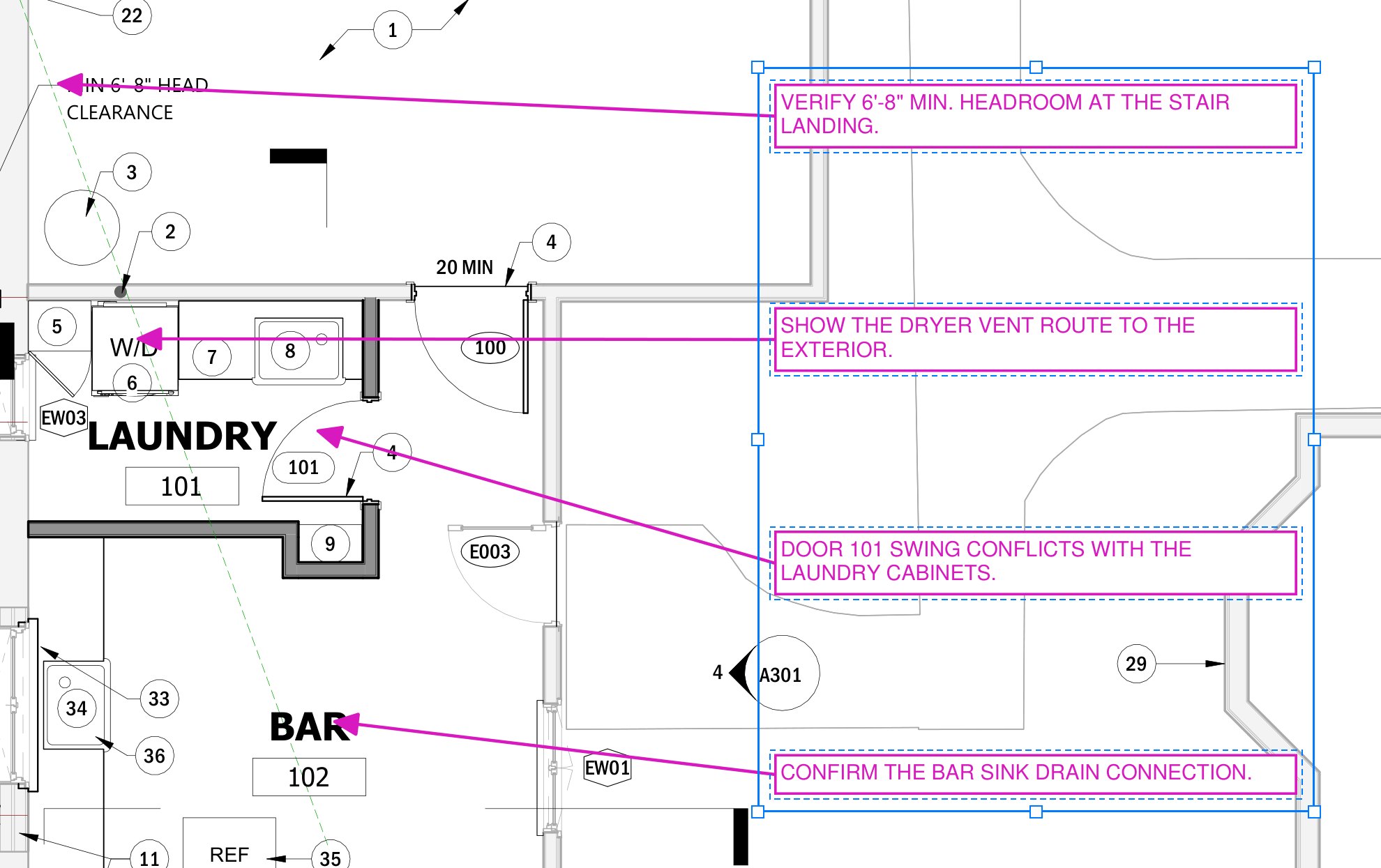
Four review notes aligned on their left edges, evenly spaced and grouped, with the group box
Aligned, distributed and grouped notes with the group box
05Measuring

Measure at scale

Sheets plotted from CAD carry their viewport scale, and Marqup reads it: a measurement on a 1" = 10' sheet reads in feet as soon as you draw it. Where a sheet has no scale, Marqup reads the scale printed on the sheet.

  1. Read Scale from Sheet (⇧⌘K, or Read… in Properties) finds scale notes such as 1" = 20' and checks them against the scale bar. It is offered on its own the first time you measure an unscaled sheet; you confirm before it applies.
  2. Set Scale types a scale in, for one sheet or every sheet.
  3. Calibrate (⇧K): click both ends of a known length, such as a dimensioned property line, and type the real length.
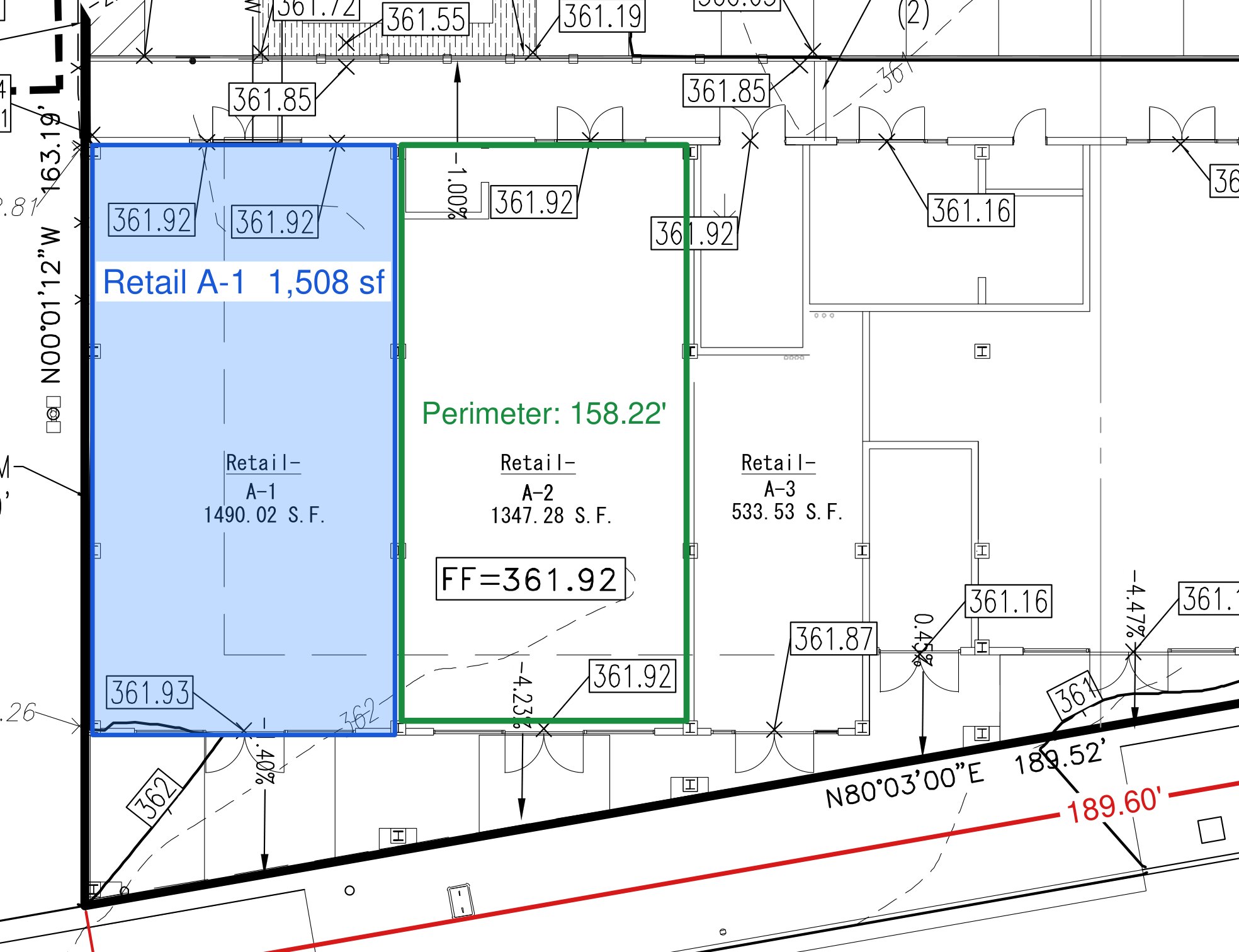
An area, a perimeter and a length on a 1 inch = 20 feet grading plan
Area, perimeter and length at a scale read from the sheet
Length ⇧⌥LClick along the path; the total shows as you go.
Area · Perimeter ⇧⌥A ⇧⌥PClick the outline. Double-click the label to change the words before the value, such as Lot 3 area.
Volume ⇧⌥VDraw an area, then enter a depth. Reads in cubic feet and cubic yards.
Dynamic Fill ⇧⌥FClick inside any closed outline drawn on the sheet, such as a building pad. Marqup traces it and measures it exactly.
Count ⇧⌥CClick each item: trees, cleanouts, inlets.
Angle · Radius · Arc ⇧⌥G ⇧⌥R ⇧⌥JThree clicks for an angle; three points on a curve for its radius or arc length.
LegendMeasure › Legend, then click: a box listing every kind of markup on the sheet with its swatch, count and total. It updates as you work.
DropIn Properties, a length can add a drop at each vertex, for pipe and conduit runs.
UnitsSettings › Measure: feet and decimals, or feet and inches with fractions, and the number of decimals.
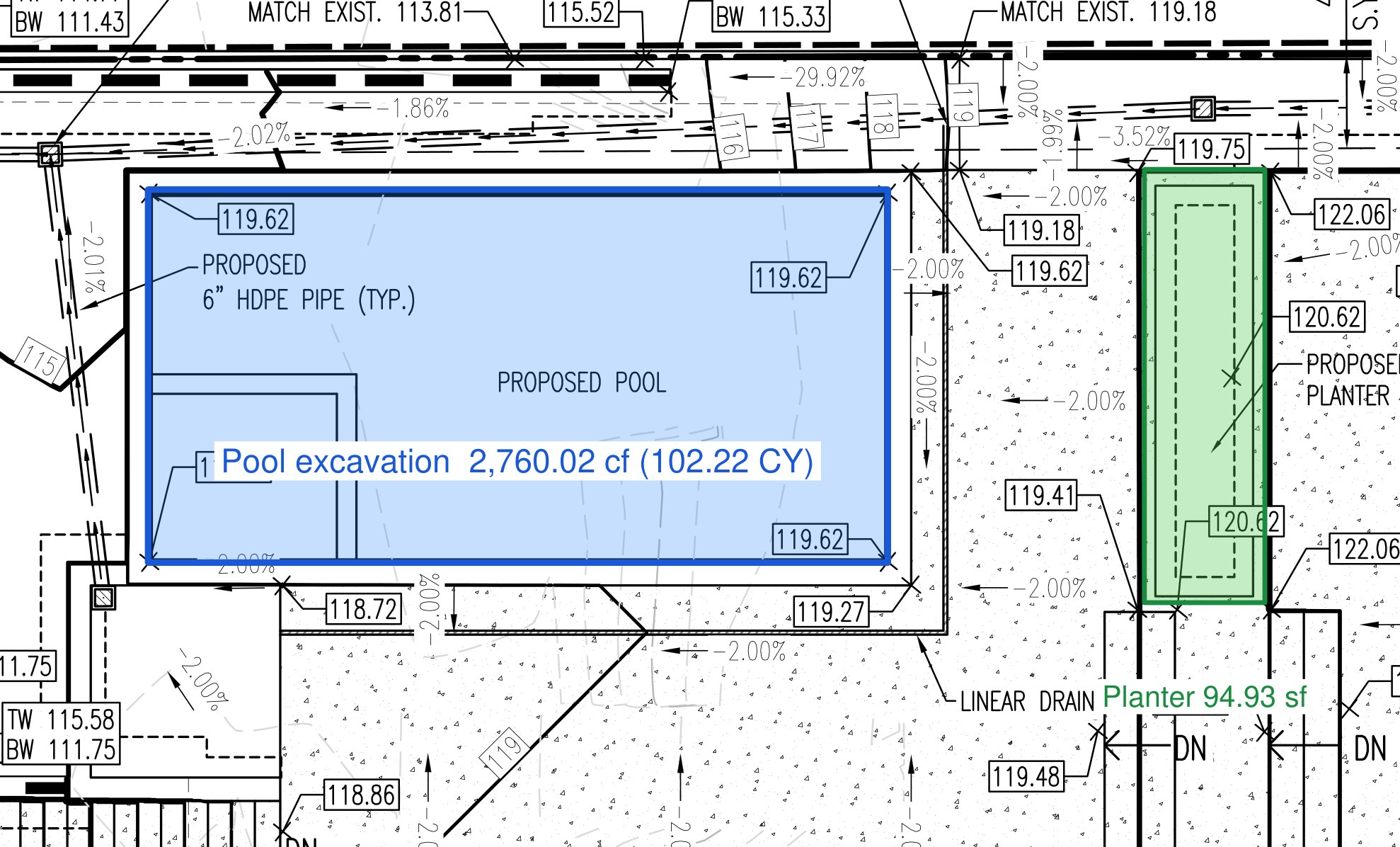
A pool measured as a volume and a planter measured by Dynamic Fill on a grading plan
Volume in cf and CY; a planter by Dynamic Fill
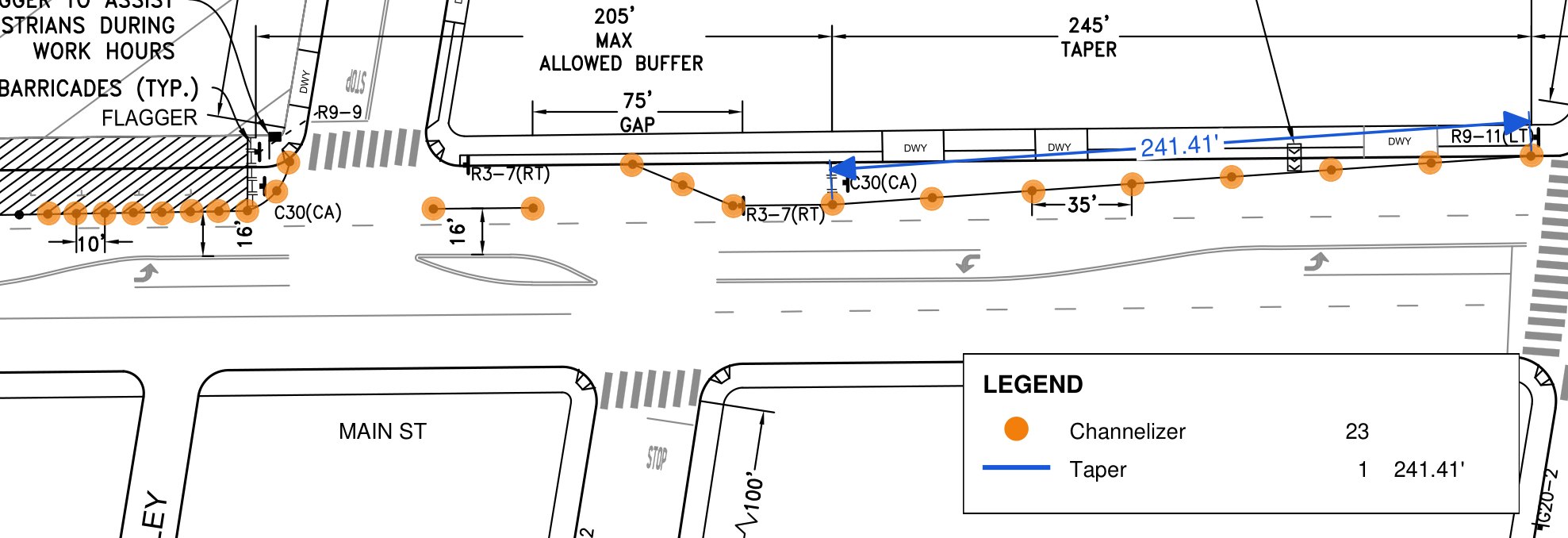
Counted channelizers, a taper length and a legend on a traffic control plan
Count, a length and a Legend

Object snap: while drawing or measuring, the pointer snaps to endpoints, midpoints, intersections, perpendiculars and nearest points of the sheet's own linework, with a green CAD snap marker. F3 turns it on or off, as in CAD; hold Control to place a point freely. Right-click the Snap button in the option bar to turn single snap modes on and off.

06Reviewing

Track every comment

StatusRight-click a markup › Set Status: Accepted, Rejected, Cancelled, Completed. Mark Complete does it in one click.
Mark CompleteHold the highlighter button › Mark Complete, then click each comment that has been addressed. Its status becomes Completed and a see-through box in the Done color is laid over it (or, if you prefer, a highlighter scribble).
RepliesAdd a reply in the Properties pane. Each reply keeps its author and date.
Markups ListShift-click or ⌘-click rows to select several, then change them together; right-click a row for Select Similar. Sort by any column; filter by sheet, author, status or type; click a row to go to the markup. The Authors button shows or hides each reviewer's markups, on the sheet and in the list, or only your own.
Company · DepartmentSet once in Settings › General. Every markup you draw carries them, so a multi-discipline review stays sorted.
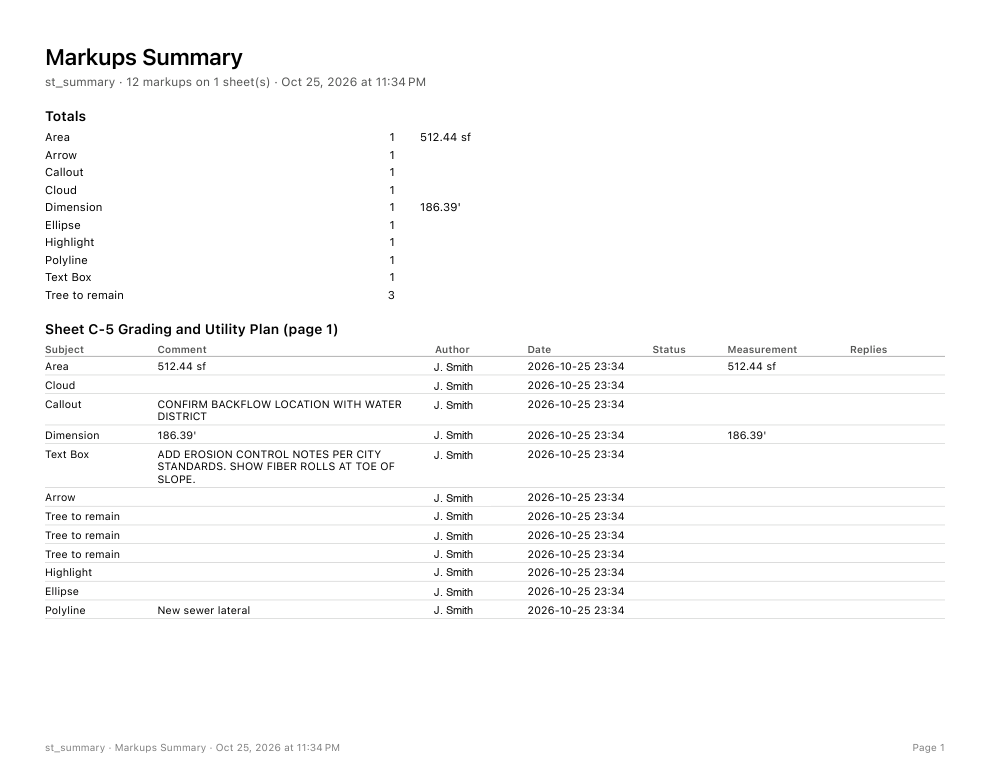
Export⇧⌘E writes the list as a CSV for a spreadsheet. Markups Summary (PDF) writes a report with totals by type, ready to attach to a response letter.
Find ⌘F⌘G next, ⇧⌘G previous.
Three numbered review comments on a utility plan, two marked complete with a yellow box over them
Comments 1 and 2 marked complete; comment 3 still open
The first page of a Markups Summary report
Markups Summary
07Comparing revisions

What changed

Both commands take the older set and the newer set. Sheets are matched by label when both sets have labels, otherwise by page order. Revisions must be plotted at the same size and position, as CAD re-plots are.
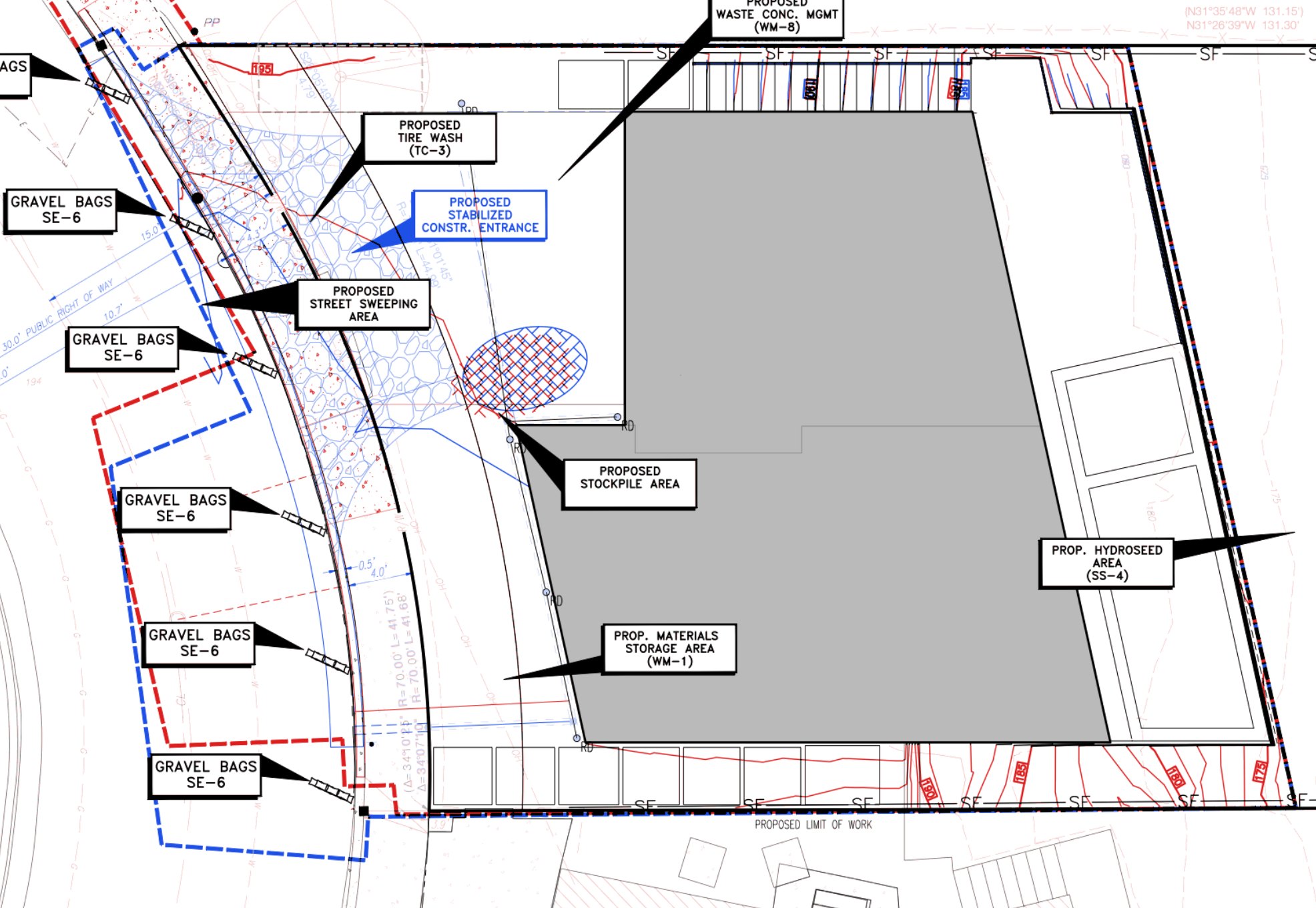
Two submittals of an erosion control plan overlaid in red, blue and black
Overlay Pages: red older, blue newer, black both
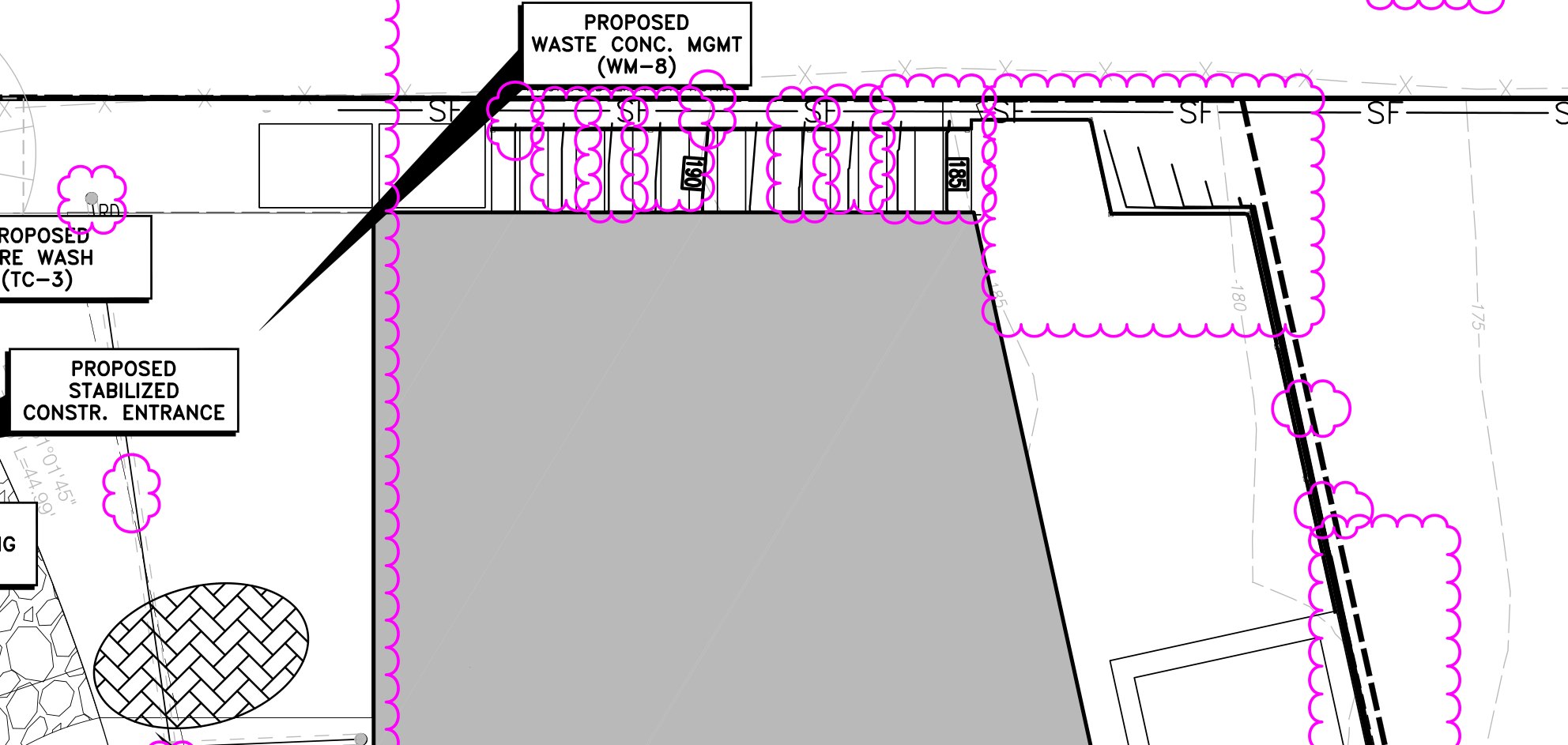
The newer submittal with magenta clouds around each changed area
Compare Documents: a cloud around every change
Overlay PagesA new PDF, one page per sheet, in red, blue and black.
Compare DocumentsA copy of the newer set with a cloud around every change, listed in the Markups List to step through.
Slip SheetReplaces sheets with the new revision's and keeps your markups, bookmarks and links where they were.
08Working with sets

The whole set

PagesInsert from a file (⇧⌘I) or a blank page (⇧⌘N); extract (⇧⌘X), replace (⇧⌘Y), delete (⇧⌘D), rotate (⇧⌘R), crop, split and reorder.
Sheet labelsPages › Page Labels from Title Block: draw a box around the sheet number once; Marqup reads the same spot on every sheet.
BookmarksAdd from the sidebar's Bookmarks view, or make one per sheet from the labels.
Batch LinkFinds every place a sheet number such as C-5 appears on another sheet and links each one to its sheet.
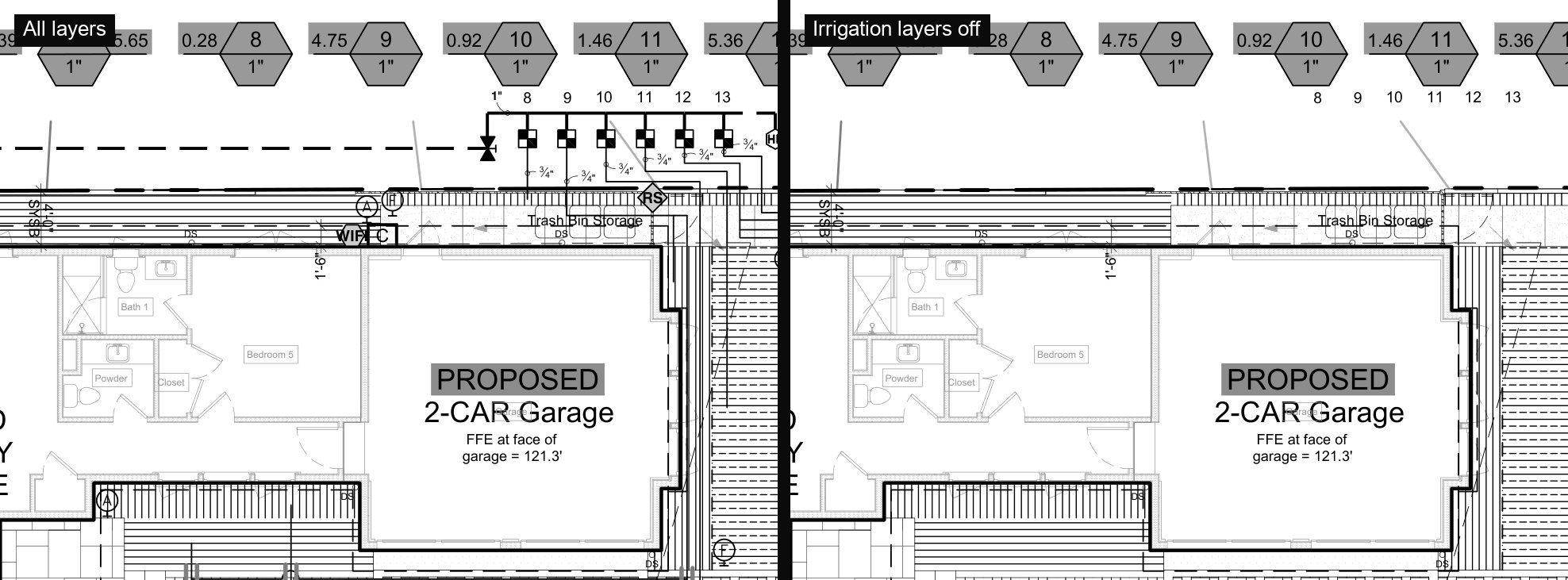
LayersTurn CAD layers off to hide them on every sheet; the choice is saved for other viewers too.
Edit PDF ContentEdit › PDF Content: snapshot, cut or erase part of the sheet's own drawing, and select its text.
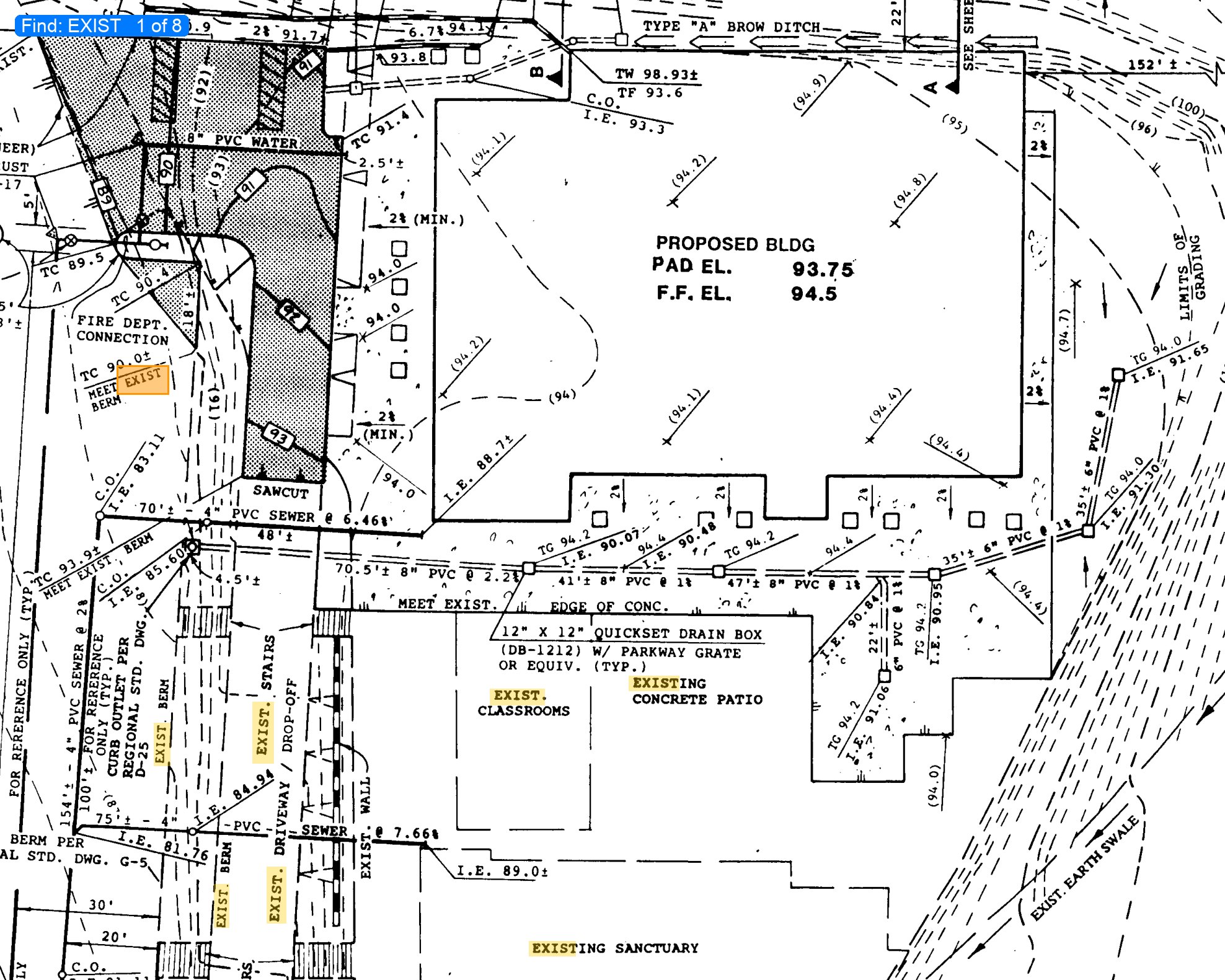
Recognize TextReads scanned sheets so Find, sheet labels and Batch Link work on them.
Page numbers · HeadersDocument › Number Pages or Headers & Footers: text written on every sheet, with codes {page}, {pages}, {label} (sheet number), {date} and {file}.
Create PDFFile › Create: from pictures, Word, RTF, web pages or text, from several files at once, or from a scanner, camera, iPhone or iPad.
ExportFile › Export: the current sheet or every sheet as PNG or JPEG, selected pages as a PDF, a flattened copy, the Markups List as CSV, Excel or Numbers, or the Markups Summary and Markups Report as Word or Pages. Pages and Numbers need those apps installed.
SetsGather several PDFs into one list of sheets you can move through as if they were one file.
BatchFlatten, Flatten for Submittal, page numbers, passwords, repair or text recognition on a whole folder at once. The originals are not changed.
SecurityProtect a set with a password and choose what others may do (print, copy, mark up); Remove Security takes it off again with the password.
RepairRewrites a damaged PDF cleanly.
Reduce File SizeFour levels, from light to smallest. Pictures are scaled down and re-saved as JPEG; line work and markups are never changed. Marqup reports how much it saved.
RedactDocument › Redact: drag boxes over what must go, or Mark Search Results to box every match, then Apply Redactions…. Text, line work, picture pixels, markups and stored search words under each box are removed and a black box is drawn; Marqup then reads the sheet again to confirm. It saves a new file ending "- Redacted" by default. Look through the redacted copy before you share it.
A scanned as-built plan after Recognize Text with Find matches highlighted
Find on a scanned sheet after Recognize Text
A landscape plan with all layers on and with the irrigation layers off
Layers: the irrigation layers turned off
09Saving, sharing, submittals

Send it back

Save ⌘SSaves the markups into the PDF as standard PDF annotations. Any PDF reader shows them, and other plan review apps open them as editable markups with their colors, measurements, status and replies.
ShareThe Share button sends the file by Mail, Messages or AirDrop.
Flatten Markups ⇧⌘MDraws markups into the sheet in this file, by type, page or selection. Leave Allow markup recovery on and Unflatten Markups brings them back.
Flattened PDF CopyFile › Export: a copy with everything drawn in; your working file keeps its markups.

Flatten for Submittal

Agency upload portals reject PDFs that carry markups, attached files or hidden data. File › Export › Flattened for Submittal (also in the Document menu and in Batch) first shows what it will clean up, each item with its own checkbox (all on to start, remembered for next time), then always saves a new file under a new name, so the original is never overwritten:

  1. Every markup, seal, signature and stamp is drawn into the sheet. Nothing visible is deleted.
  2. Empty "AutoCAD SHX Text" boxes that CAD exports leave behind are removed (they draw nothing).
  3. Attached files, XML (XMP metadata) on the document and on every image and font, XFA forms, JavaScript and automatic actions, viewports and their measurement scales, and CAD application data are removed.
  4. CAD layers are merged into the drawing: what you see stays as plain drawing, and anything on a hidden layer is left out, so the sheets look exactly as they did. Turn this off to keep the layers.
  5. Fillable form fields are kept, since agencies accept them.
  6. Marqup then draws every sheet of the copy and the original and compares them, and tells you if any sheet looks different.
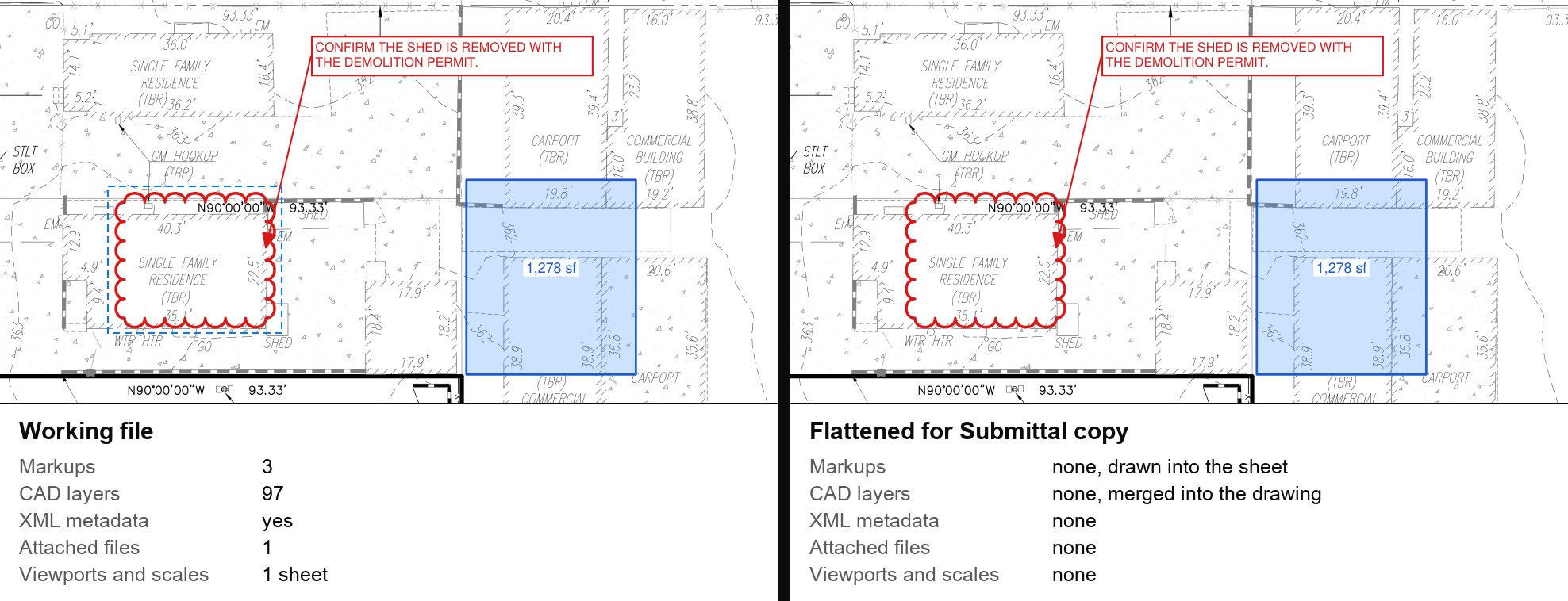
The same sheet before and after Flatten for Submittal with what each file contains listed underneath
Working file and submittal copy, with what each contains

Your working file is not changed. Upload the copy; keep the working file for the next round of comments. The City of San Diego's e-plan upload, for one, rejects files that still carry markups, layers or attached files.

10Keyboard shortcuts

Single keys pick tools when no text is being typed. ⌘ Command · ⇧ Shift · ⌥ Option · ⌃ Control.

Select and view

SelectV
Pan⇧V
Pan while heldSpace
Zoom toolZ
Zoom in · out⌘= ⌘-
Fit Width · Fit Page⌘1 ⌘0
Single Page · Continuous⇧S ⇧C
Previous · next sheet← →
First · last sheetHome End
Go to Page⌥⌘G
Sidebar⌃⌘S
Markups List⌥⌘L
Properties⌥⌘I
Option bar⌥⌘O
Clean Screen⇧⌘F
Full Screen⌃⌘F
Select Text⇧T
SnapshotG

Markup

CalloutQ
Text Box · TypewriterT W
Cloud · Cloud+C K
Rectangle · EllipseR E
Line · ArrowL A
DimensionD ⇧L
Polyline · Polygon⇧N ⇧P
Pen · HighlightP H
StampS
Finish a line or cloudReturn
Edit the selected textReturn
Put the tool downEsc
Reuse Tools⌥⌘K
Fit text box to text⌥Z
Bring forward · to front⌘] ⇧⌘]
Send backward · to back⌘[ ⇧⌘[
Lock · Unlock⇧⌘L

Measure

Length · Area⇧⌥L ⇧⌥A
Perimeter · Volume⇧⌥P ⇧⌥V
Dynamic Fill · Count⇧⌥F ⇧⌥C
Angle · Radius · Arc⇧⌥G ⇧⌥R ⇧⌥J
Calibrate⇧K
Read Scale from Sheet⇧⌘K
Object snap on · offF3

Edit and file

Undo · Redo⌘Z ⇧⌘Z
Cut · Copy · Paste⌘X ⌘C ⌘V
Delete⌫
Select all on the sheet⌘A
Select Similar⇧⌘A
Group · Ungroup⌃⌘G ⌃⇧⌘G
Nudge (bigger with ⇧)← ↑ → ↓
Find · next · previous⌘F ⌘G ⇧⌘G
Open · Save · Save As⌘O ⌘S ⇧⌘S
Create PDF from File⌘N
Print⌘P
Export Markups List⇧⌘E
Flatten Markups⇧⌘M
Document Properties⌥⌘D
Settings⌘,
11Help and updates

Help and updates

Send Feedback · Report a BugHelp menu. Fill in a short form; Marqup opens an email to support@marqup.app in your mail app with the Mac and Marqup versions and, if you tick it, a picture of the window. Nothing is sent until you send it.
UpdatesUpdating is always your choice. When a new version is ready Marqup offers Update Now, Later or Skip This Version; Update Now takes a few seconds and reopens your files. Turn the check off in Settings › Advanced, and use Marqup › Check for Updates… any time.
VersionMarqup › About Marqup.
In the next updateTool cursors that show the tool's icon; length and radius read out beside the pointer while you draw; two pages side by side; favorite folders in the Open window; a no-fill swatch; and text recognition in the background, so Find works on AutoCAD sheets whose lettering is linework.